Sound synthesis: kits
A kit holds the sixteen sounds of the Machinedrum. For each track it stores the machine, its parameters, its track effects, its routing and its LFO. It also stores the four master effects and the kit's name. The machine holds 64 kits.
In the editor the kit that plays is the working kit. Your edits change the working kit at once. They reach the stored slot only when you save.
MACHINEDRUM KITS #
MD manual pp.14, 21
The Kit field of the LCD shows the working kit. Its chip says whether the kit is saved or edited. The chip turns to edited when you change the kit. Edits are lost when you load another kit, unless you save them first. The editor asks before it loses edits. Press [ESC] to cancel the question: nothing loads and your edits stay. [SPACE] presses the focused Cancel key.
The kit library, the Kit workspace and the Mix workspace all read and write the whole kit. The Kit workspace holds the sounds, the Mix workspace the routing and the master effects.
LOADING A KIT #
MD manual pp.14, 15
- Click the Kit field of the LCD, or focus it and press [ENTER / SPACE ON KIT OR THE PATTERN]. The kit library opens with the 64 slots in rows of eight.
- Click a slot. The machine loads the kit at once. The slot you clicked becomes the current kit.
- Press [ESC] to close the library.
If the working kit has unsaved edits, the editor asks before it loads. The loaded kit replaces your edits, but the machine keeps them in its own UNDO KIT.
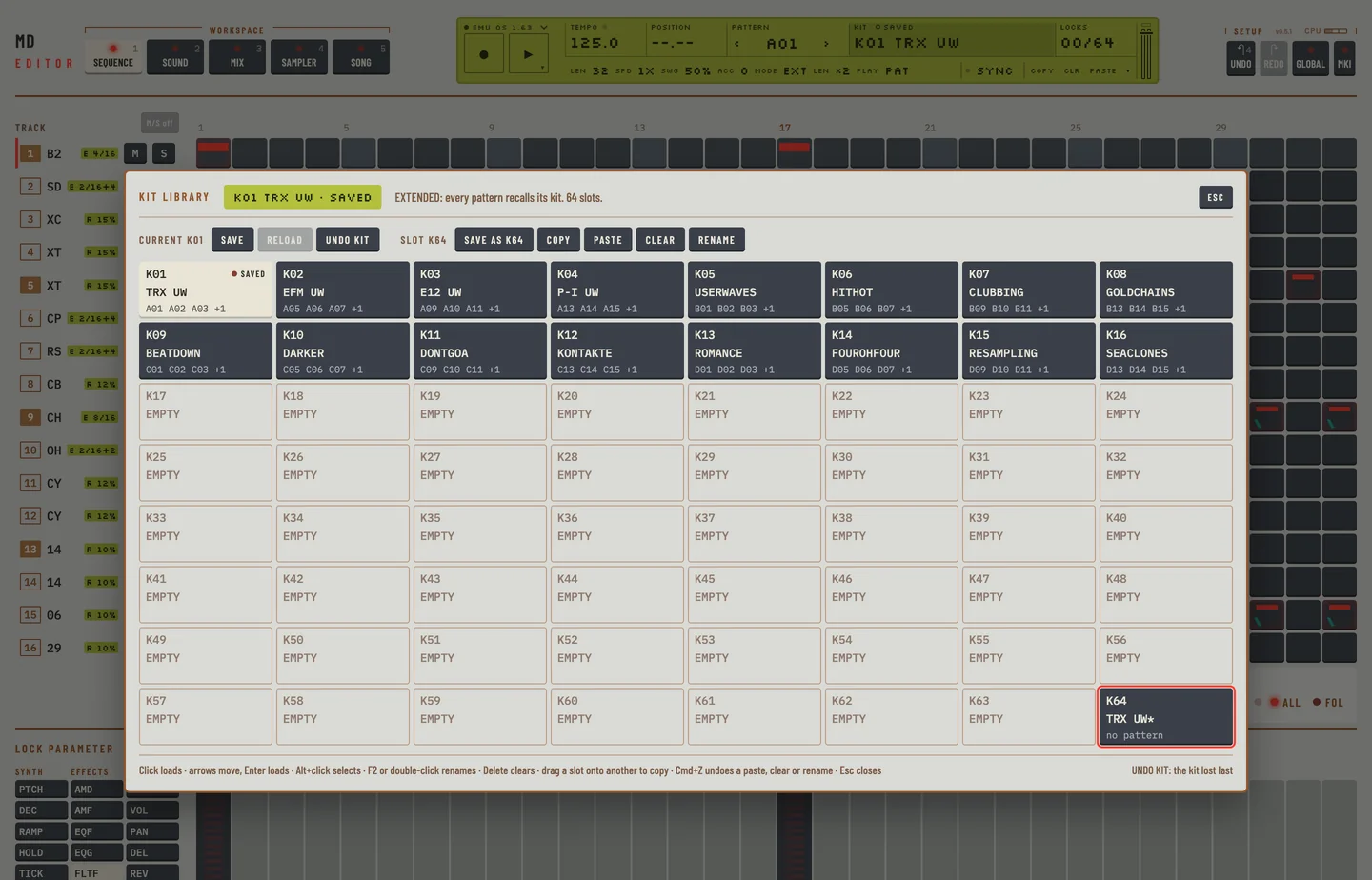
To look at a slot without loading it, hold [⌥] and click it, or move with [ARROWS]. Press [ENTER] to load the slot you selected.
Each slot shows its number, its name and the patterns that link to it. In EXTENDED mode a kit that no pattern links to has a star after its name. A slot that was never written reads EMPTY.
SAVING AND NAMING A KIT #
MD manual p.15
Save a kit
- Open the kit library.
- Click Save to store the working kit in the slot it came from.
- Or select another slot and click Save as with its number. The working kit goes into that slot and becomes the current kit. In EXTENDED mode the current pattern links to it.
- The editor asks before it overwrites a slot that holds a kit. Click Overwrite. While the question is open, the library's own keys do nothing.
- The chip reads saved.
The kit that the save overwrites goes to the machine's UNDO KIT. The slot you saved from keeps what it had when you use Save as.
Name a kit
- Select the slot in the kit library.
- Click Rename, press [F2], or double-click the slot.
- Type the name. It has at most 16 characters. Letters become capitals. The name takes letters, digits, spaces and a few marks; the editor drops any other character as you type.
- Press [ENTER] to keep the name, or [ESC] to leave it.
Renaming the current kit changes the working kit, so you must save to store the name. Renaming another slot writes the name into that slot after the editor asks you to confirm. [⌘] + [Z] takes a rename back.
UNDO KIT #
MD manual pp.16, 17
The machine keeps one UNDO KIT: the kit lost to your last load or save.
The editor has its own undo for slot changes. Press [⌘] + [Z] in the kit library to take back a paste, a clear or a rename. Press [⌘] + [Z] anywhere to undo your last edit, and [⌘] + [⇧] + [Z] to redo it.
To throw away your edits to the current kit, click Reload in the kit library. It loads the slot again. Reload is off while the kit is saved.
To get back the kit lost to your last load or save:
- Open the kit library: click the KIT field on the LCD.
- Click UNDO KIT. The lost kit plays again, with its unsaved edits, and the slot it came from becomes the current kit.
- Click Save to keep it.
If the current kit has unsaved edits, the editor asks first: the machine does not keep them when it loads the UNDO KIT.
COPY KIT #
MD manual p.16
- Select a slot in the kit library.
- Click Copy, or press [⌘] + [C / V].
- Select the slot to copy to.
- Click Paste, or press the same keys with [V]. If the slot holds a kit, the editor asks first: click Overwrite.
- Press [⌘] + [Z] with the library open to put the slot back as it was.
You can also drag a slot onto another slot to copy it there.
A copy of the current kit includes the edits you have not saved. Pasting into the current kit also loads it, because the machine only plays what it has loaded. Press [⌘] + [Z] to take a paste back.
CLEAR KIT #
MD manual p.17
- Select a slot in the kit library.
- Click Clear, or press [DELETE].
The slot is written as the machine's own CLEAR KIT leaves it: every track is GND-EMPTY at the same values (level 100, VOL 127), each track's LFO on its own track, the master effects at their start, and no name. The slot then reads EMPTY. Press [⌘] + [Z] to get the kit back.
KIT ASSEMBLY #
MD manual pp.17, 18
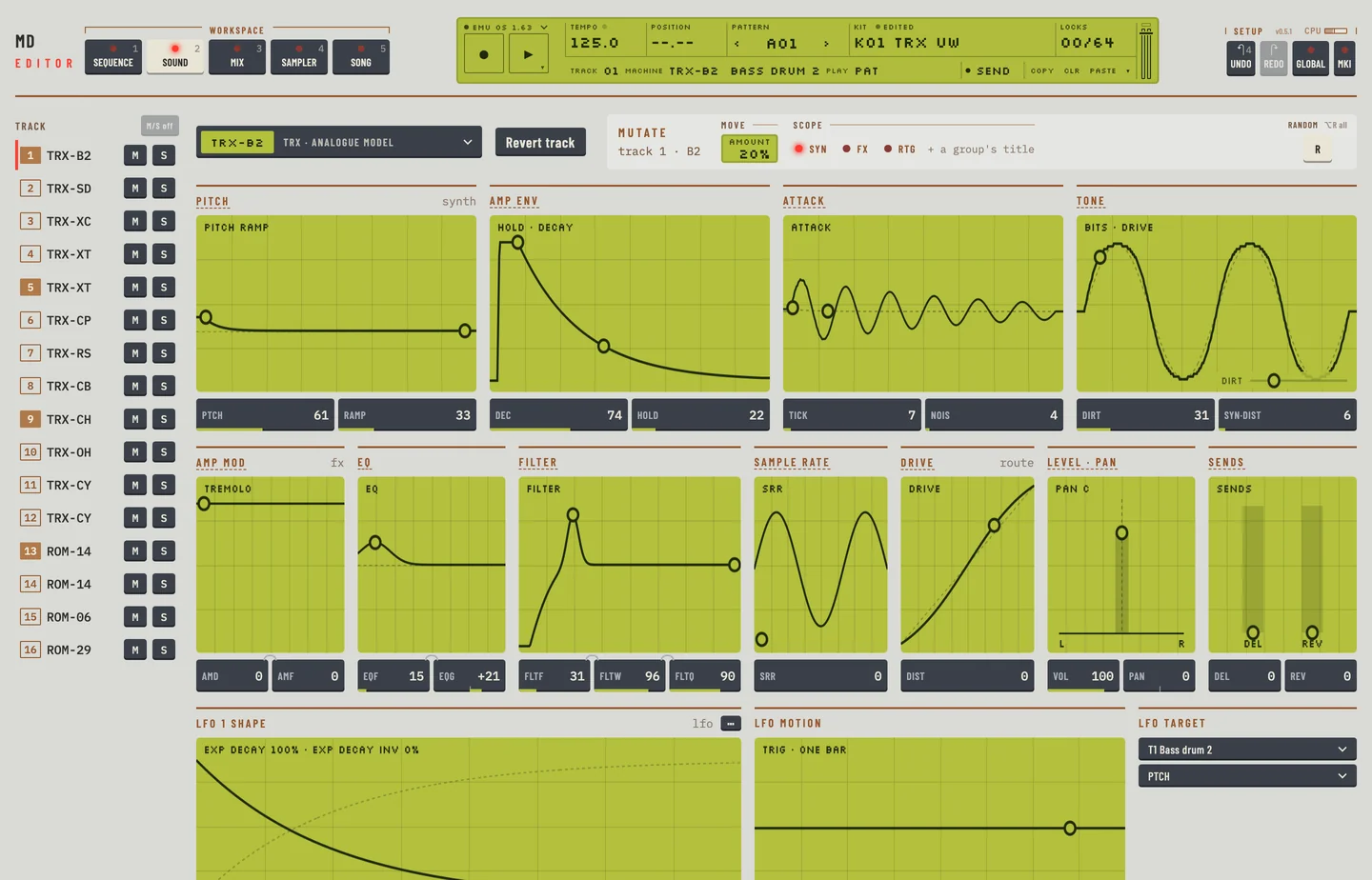
Each track holds one machine. The machine decides which synthesis parameters the track has.
- Open the Kit workspace and select a track.
- Click the machine key at the left of the header. It shows the machine and its family. The picker opens.
- Click a family at the left: TRX, EFM, E12, P-I, GND, INP, MID, CTR, ROM or RAM.
- Click a machine. The track takes it at once.
- Press [⌘] + [Z] to put the old machine back.
Hover over a machine to see its name and the names of its knobs in the line under the grid.
| Family | Machines |
|---|---|
| TRX | analogue models |
| EFM | FM drums |
| E12 | 12-bit samples |
| P-I | physical models |
| GND | tone and noise |
| INP | external input |
| MID | MIDI out |
| CTR | control |
| ROM | ROM samples, on the UW models |
| RAM | RAM record and play, on the UW models |
Keep effects and routing
The picker has a Keep effects + routing key, lit when it is on. It is on at start.
- With it on, the new machine keeps the track's effects and routing values.
- With it off, the effects and routing values of the track go back to neutral.
The synthesis values stay as they are in both cases and go to the new machine.
- Open the picker. Keep effects + routing is lit.
- Pick another machine. The track keeps its effects and routing values.
- Press [⌘] + [Z] to take the change back.
SETTING MUTE AND TRIG RELATIONS OF A KIT #
MD manual pp.18, 19
A relation links one track to another. Both are set on the Kit workspace, in the Relations group at the right end of the last row.
- Mute: a trig on this track mutes the track you choose. Use it for an open and a closed hihat.
- Trig: a trig on this track also trigs the track you choose. Use it to layer sounds. Trig relations do not chain.
- Select the track that causes the effect.
- Under Mute or Trig, open the menu and choose a track, or choose none.
- To remove a relation, choose none in the same menu.
Relations are part of the kit. Save the kit to keep them.
COPY MACHINE #
MD manual p.19
- Open the Kit workspace and select a track.
- Click Copy on the LCD, or press [⌘] + [C].
This copies the machine of the track, its parameter values, its level and its LFO.
PASTE MACHINE #
MD manual p.20
- Select the track to paste onto, on the Kit workspace.
- Click Paste on the LCD, or press [⌘] + [V].
The track takes the copied machine, values, level and LFO. [⌘] + [Z] takes the paste back. The LFO now targets the track you pasted onto. You can paste as often as you like, onto any track and into any kit: the copy stays until you copy something else.
CLEAR MACHINE #
MD manual p.20
- Select a track on the Kit workspace.
- Click the machine key at the left of the header. The picker opens.
- Choose GND-EMPTY. The track has no machine: the key shows GND-EMPTY.
- Press [⌘] + [Z] to take the clear back.
The key Clr on the LCD is a different thing. It sets every parameter of the track, its effects and its routing to neutral values and its level to 100, and the track keeps its machine.
MACHINE PARAMETER EDITING #
MD manual p.21
The Kit workspace shows the selected track's parameters in groups. Each group has a title, a small screen and value boxes. Every knob of the machine sits in one group.
- The first row holds the synthesis groups of the machine, for example Pitch, Amp env and Tone.
- The second row holds the track effects and the routing: chapters 4 and 5.
- The third row holds the LFO and the track's relations: chapter 7.
A group's screen is a picture of what its knobs do. Drag the dots on it to change the knobs. A dot on a rail at the foot of a screen is a knob the curve shows. Each screen has a help text; hover over it.
Machines without a picture, such as MIDI out, show only boxes and a line about what the machine does.
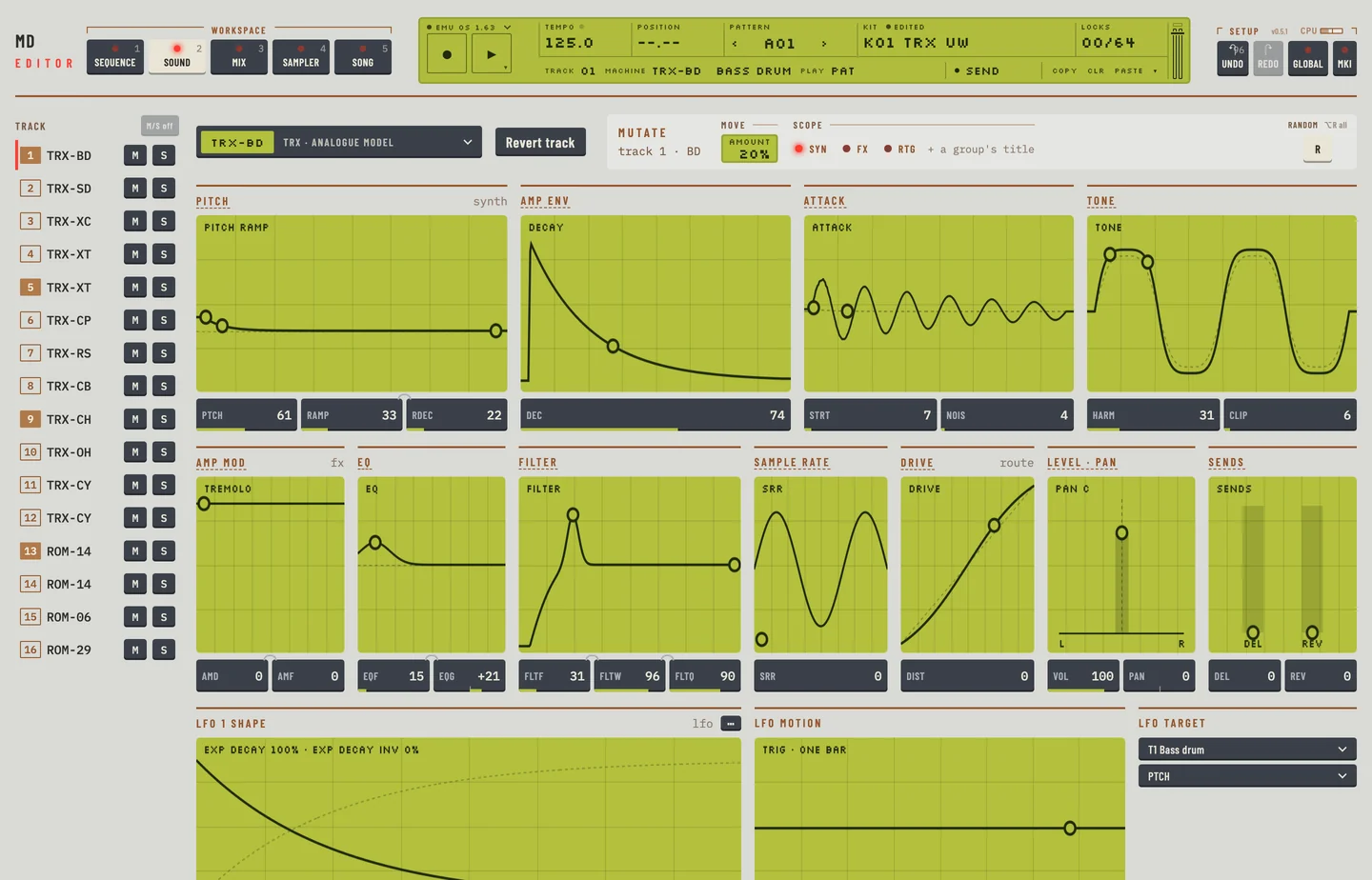
To change a value with the keyboard, focus a box and press [↑] or [↓]. Each press moves it one step.
Hold [⌥] and drag a value to move the same knob on every track. This is Control All. MIDI and control machines are left out. [⌘] + [Z] takes the whole move back in one step.