Sample manager, UW only
The sample manager is a feature of the UW models, which have sample memory. In the editor it is the Sampler workspace. Press [4], or click the Sampler tab.
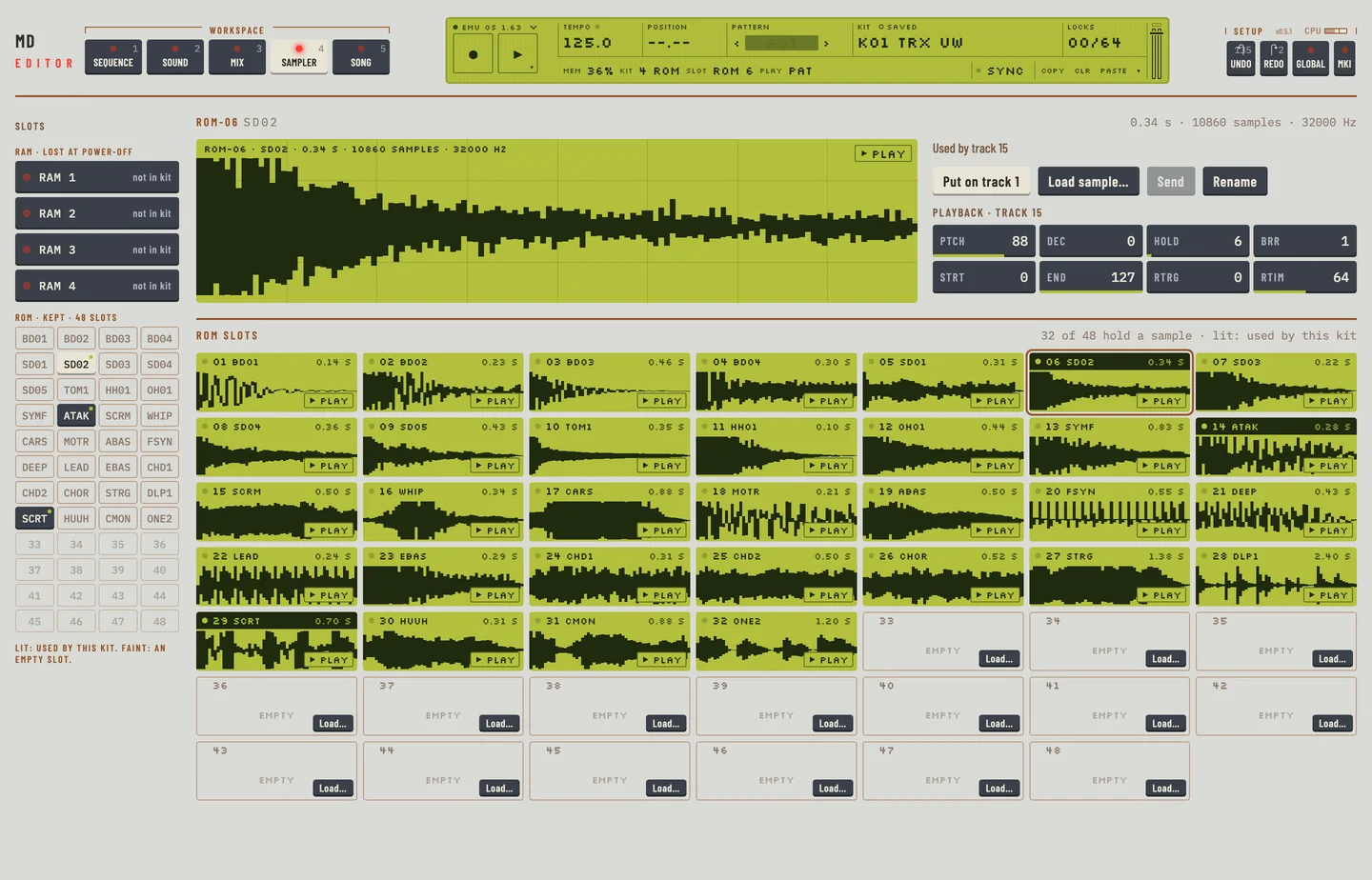
The rail on the left lists the slots: four RAM slots and 48 ROM slots. The page shows the selected slot. On the second line of the LCD, <MEM> gives the share of the sample memory in use, <KIT> the number of tracks in the kit that play a ROM slot, and <SLOT> the selected slot.
SAMPLE MANAGER #
MD manual pp.70, 71
The slots
The ROM slots are in the rail as a grid of 48 keys. A key that is lit holds a sample the kit uses. A faint key is an empty slot. Point at a key to see its number, its name, its size and the tracks that play it.
With a ROM slot selected, the page shows under it every ROM slot as a tile: its waveform, its number and name, and a key to hear it. An empty slot offers Load…. Click a tile to select the slot.
Point at a key or a tile to see the size of the sample: its length in seconds, in kilobytes and in samples, and its rate. A kilobyte count is the sample as the machine stores it, 16-bit and mono.
Memory left
The header of the ROM slots card gives the sample memory in seconds: how much the samples hold, how much is free, and the free share in per cent. The ROM slots and the four RAM buffers share the memory, so the figure counts both. Point at the <MEM> field for the same figures in samples. The machine does not report its own figure over MIDI, so the editor works it out from the samples it reads.
Hear a sample
Click the play key on a tile, or the play key by the waveform of the selected slot. !A tile with its play key
The sample plays once, from the start, on the output of the plug-in. Click the key again to stop it. A line moves over the waveform as it plays.
Name a sample
- Select the ROM slot. It must hold a sample.
- Click Rename.
- Type a name of up to four letters and click Rename.
The Machinedrum renames a sample only when it receives the sample. So the editor sends the new name, then the slot's own sample again into the same slot. A bar shows the sending, as when you load a file, and the sample is the same as before: only the name changes. The slot's loop points are not sent again.
Rename needs the editor to read the slot's audio, so it works with the emulated machine. A real Machinedrum does not send its samples back, so the Rename key is greyed out, with the reason. Rename the sample in SAMPLE MGR on the machine, or load the file again.
Put a sample on a track
- Select a track.
- Select the ROM slot on the Sampler workspace.
- Click Put on track. The track now plays the sample.
Under it, the playback controls of the track that plays the slot set the pitch, the decay, the start and the end.
Limits
The editor makes every sample it loads mono and 16-bit, at 44.1 kHz at most, and cuts it to the memory left.
Not in the editor yet: The editor takes WAV and AIFF files. It does not receive a sample sent over MIDI by another program.
Copy, paste and undo
- Select a slot that holds a sample, ROM or RAM.
- Click Copy. A line beside the keys names what is copied.
- Select the ROM slot that is to take it.
- Click Paste. A bar shows the sending, as when you load a file.
The copy is a snapshot taken when you click Copy. A RAM take that is recorded over afterwards is still pasted as it was. The paste replaces what the slot holds. The slot takes the name of the copy.
Undo sample sends back the sample that the last paste, RAM to ROM copy, rename or file load replaced. It goes back 16 steps, one at a time. The editor has no redo for samples. An erase of one slot can be undone the same way. A step that filled an empty slot cannot be undone yet.
To clear a sample slot, use Erase on it.
THE DIFFERENCE BETWEEN ROM AND RAM MACHINES #
MD manual p.71
The ROM slots keep their samples when the power is off. A ROM machine plays a sample from a ROM slot. The rail marks the ROM slots "kept".
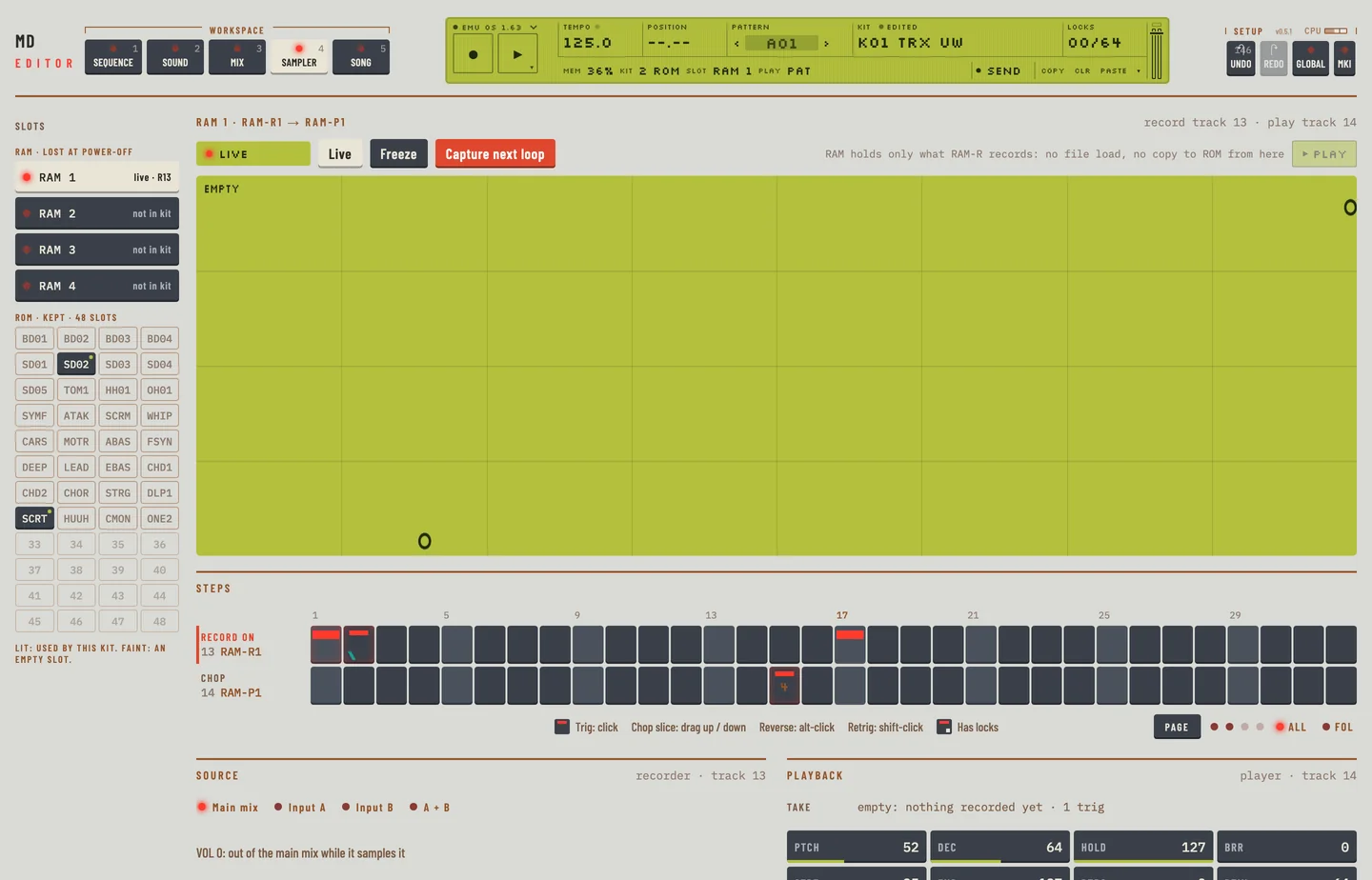
The RAM slots lose their samples at power-off. A RAM-R machine records into a RAM slot. A RAM-P machine plays what the slot holds. The rail marks the RAM slots "lost at power-off" and says for each whether it is live, frozen, capturing or not in the kit.
To start sampling into a RAM slot:
- Select a RAM slot in the rail.
- In the Set up sampling card, choose the recorder track and the player track with the ‹ and › keys.
- Click Set up sampling. The recorder takes the machine RAM-R and records the main mix. The player takes RAM-P and plays the slot. This is one undo step.
- Press [SPACE].
- Click Capture next loop. The recorder records one whole loop from the next start of the pattern, then the editor mutes it to keep the take.
Click Live to record again on every loop. Click Freeze to mute the recorder and keep the take. Main mix, Input A, Input B and A + B choose what the recorder takes.
RAM TO ROM COPY #
MD manual p.71
To keep a RAM take when the power is off, copy it to a ROM slot:
- Select the RAM slot that holds the take.
- Click Keep as ROM….
- Type the ROM slot, 1 to 48. The first empty slot is offered.
- Click Keep. A bar shows the sending.
The take is sent as it is now. The ROM slot takes the name RAM1 to RAM4 and replaces what it held; Undo sample brings that back. The other RAM slots stay as they are. On the machine the copy empties them after a prompt, and the editor does not.
GENERAL SAMPLE RECEIVE #
MD manual p.72
The machine takes a sample sent over MIDI at any time. The editor does not wait for a sender. You choose the file and the slot. See "SPECIFIC PLACE SAMPLE RECEIVE".
SPECIFIC PLACE SAMPLE RECEIVE #
MD manual p.73
- Select the ROM slot in the rail or on its tile.
- Click Load sample… or, on an empty tile, Load….
- Choose a WAV or AIFF file.
- A bar shows the sending. Click Stop to cancel. When it ends, a message says the sample is loaded.
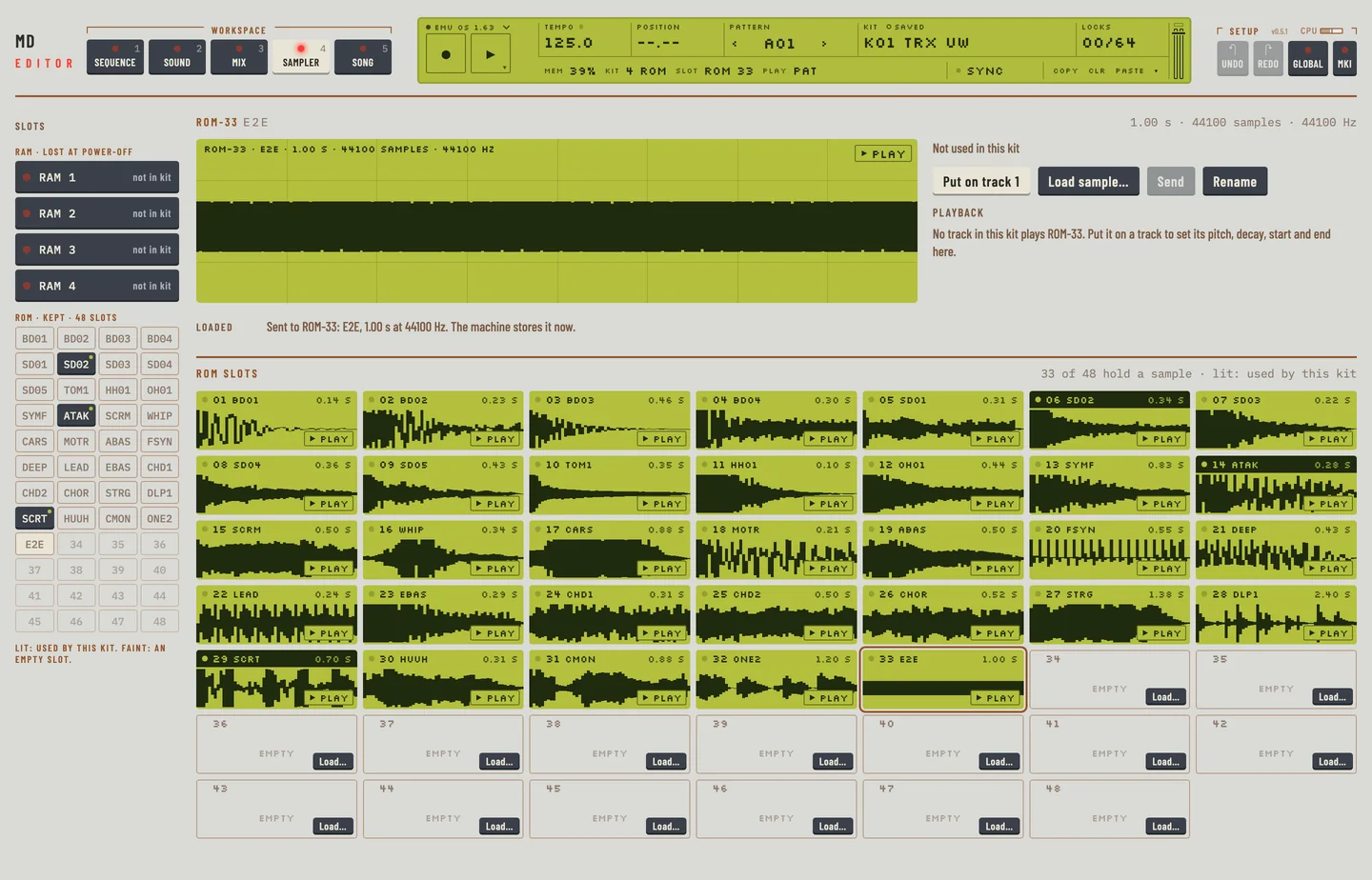
You can also drop the file on the waveform of an empty ROM slot. The slot takes it.
The sample replaces what the slot holds. The plug-in gives it a name of four letters from the file name.
ORIGINAL PLACE SAMPLE RECEIVE #
MD manual p.74
Drop several WAV or AIFF files on the window with the Sampler open. They go into ROM slots one after another, one file at a time.
- Select the first ROM slot, or drop on the tile you want it to start from.
- Drop the files. The editor asks "Load 3 samples into ROM-05 to ROM-07?" and tells you each replaces what its slot holds.
- Click Load.
ROM-48 is the last slot. Files past it are not loaded, and a message says how many. Drag and drop works on macOS only. On Windows and Linux, load the files one at a time with Load sample….
SEND SAMPLES #
MD manual p.74
The Machinedrum ignores requests for its samples over MIDI, so the editor does not ask it to send. It reads the samples from the emulated machine and writes them as files instead.
- Select the slot, ROM or RAM.
- Click Export WAV.
- Choose where to save the file.
To save every ROM slot that holds a sample, click Export all… in the header of the ROM slots card and choose a folder. A file is written for each slot, named by its slot and its name, such as "ROM-04 SNR". On a RAM slot, Export all RAM… does the same for the four RAM slots.
The files are 16-bit mono WAV at the slot's own rate. They hold exactly the samples the machine holds, with no loop points.
To get the file the machine's own SEND makes, click Export SysEx on a ROM slot, or Export all SysEx… in the header of the ROM slots card. The file is a MIDI Sample Dump with the slot's position in it. When you send it back with the ORG method, the sample lands in the slot it came from. A RAM slot has no SysEx file: keep it as a ROM slot first, or export it as WAV.
ERASE SAMPLES #
MD manual p.75
Click Erase on a ROM slot to empty it. The editor asks first, then presses the machine's own keys for you: FUNCTION + PATTERN/SONG, the third icon of GLOBAL 1 EDIT, SAMPLE MGR, ERASE, the slot, and ENTER twice. It looks at the machine's screen after every key. If the screen is not the one it expects, it stops, leaves the menu with EXIT and tells you that nothing was erased. When the keys are through, the editor reads the sample memory again and says so once the slot is empty. Leave the machine alone while this runs. Undo sample sends the erased sample back.
Click Erase all… in the header of the ROM slots to empty every ROM slot the same way. The editor asks twice as plainly, because this cannot be undone with Undo sample: export what you want to keep first.