LFOs
Each kit has 16 LFOs, one for each track. An LFO moves one parameter of one track, up and down, in time with the tempo. By default an LFO moves a parameter of its own track.
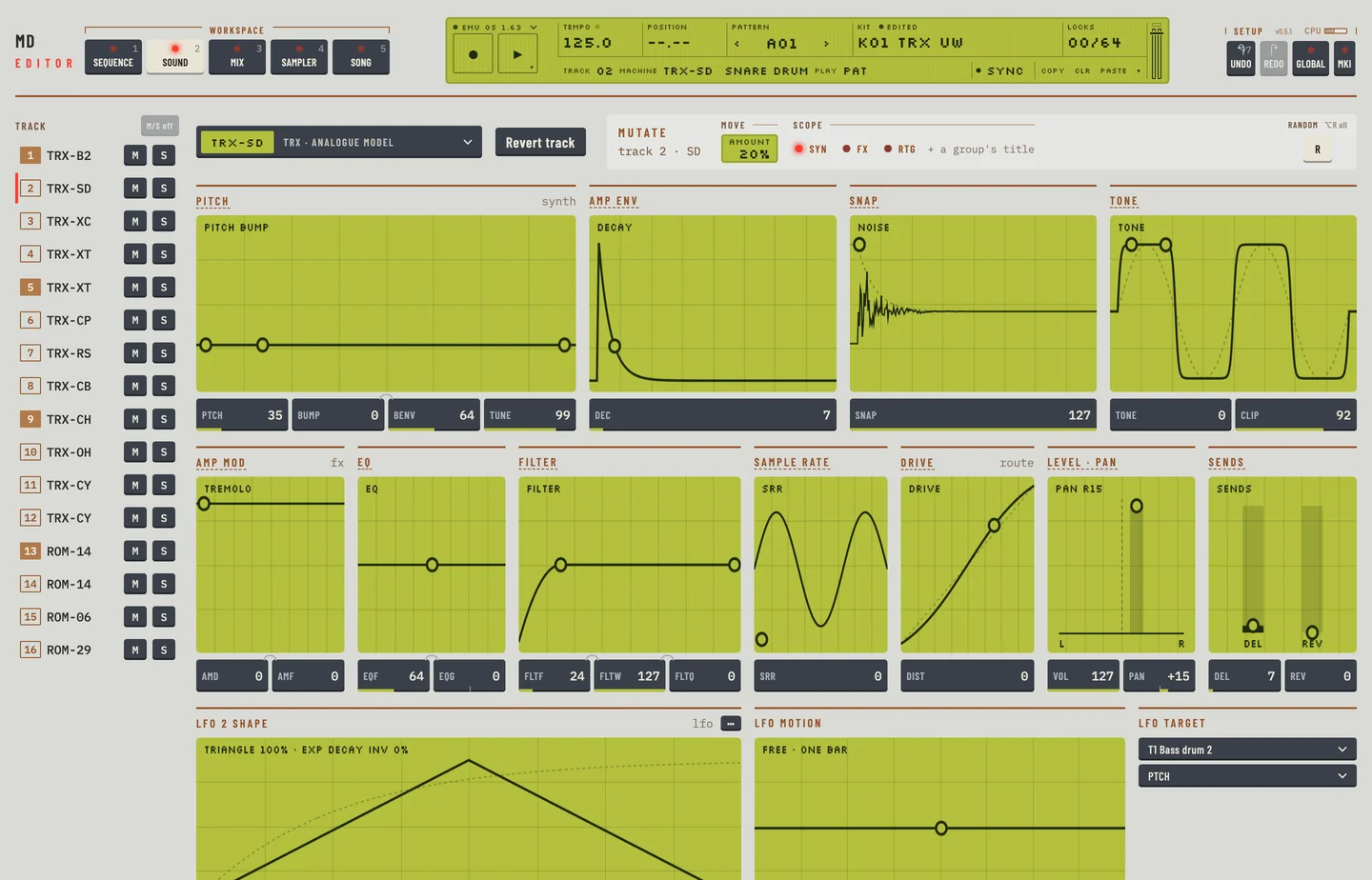
On the Kit workspace the LFO of the selected track fills the last row. Select another track in the rail to edit its LFO. The row holds three groups: LFO shape, LFO motion and LFO target. The title of the first reads LFO and the track number, for example LFO 3 shape.
LFO EDIT #
MD manual p.32
On the machine you hold FUNCTION and press the SYNTHESIS, EFFECTS and ROUTING key to open the LFO edit window. In the editor the LFO row is always on the Kit workspace, so there is no window to open.
Target
The group LFO target has two menus.
- Open the first menu and choose the track the LFO moves. Entries read T1 and the track's sound.
- Open the second menu and choose the parameter. It lists the synthesis, effects and routing parameters of that track.
To move another LFO, choose that LFO's track and then LFOS, LFOD or LFOM. These are its speed, depth and mix. The machine applies its own rule for which LFO may move which.
An LFO can move a parameter of another LFO, its own included: choose LFOS of the same track as the target, and the LFO changes its own speed.
When you choose another track, the parameter stays if the new track has it. If not, the first parameter of the new track is chosen.
SHP1 AND SHP2 #
MD manual p.32
The group LFO shape has two rows of shape keys. SHP1 and SHP2 each choose one of six shapes: triangle, saw, square, linear decay, exponential decay and random.
SHP2 shows the same six shapes inverted.
Click a key to choose a shape. Try each of the six keys of SHP1 and each of SHP2: the kit follows each click. The screen shows one cycle of the LFO. The solid line is the mix of the two shapes. The faint lines are the shapes themselves.
UPDTE #
MD manual p.32
The group LFO motion has the UPDTE keys.
- FREE: the LFO runs on and never restarts.
- TRIG: the LFO restarts on every trig of its track.
- HOLD: the LFO holds the value it has when the track is trigged, until the next trig.
An LFO restarts only when its own track is trigged. Click a key to choose the mode.
SPEED #
MD manual p.32
SPD is the speed of the LFO, in 1/128 notes of the tempo. Drag the SPD box, or the dot on the screen of LFO motion sideways. With the box focused, the up and down arrow keys move it one step at a time.
The screen shows the LFO across one bar of the track. The ticks mark the restarts of TRIG.
DEPTH #
MD manual p.33
DEPTH is how much the LFO moves the parameter. Drag the DEPTH box, or the dot on the screen of LFO motion upward. The dashed line on the screen shows the depth.
SHMIX #
MD manual p.33
SHMIX balances the two shapes. At 0 the LFO uses SHP1 only. At 127 it uses SHP2 only. Drag the SHMIX box, or the dot on the screen of LFO shape sideways.
SPD, DEPTH and SHMIX are also the routing parameters LFOS, LFOD and LFOM. See chapter 5.
LAYERING LFOS #
MD manual p.34
If the LFOs of two tracks have the same target, their outputs add. You can build slow and fast movements on one parameter this way.
- Select the first track and set its LFO target.
- Select a second track and choose the same track and parameter as its LFO target.
- Both LFOs keep their settings, and their outputs add.
An LFO can also move several parameters of a machine at once, one parameter for each track's LFO.
COPY, PASTE, CLEAR AND UNDO #
MD manual p.34
The LFO is part of the track's sound. Copy and paste on the Kit workspace take the machine, its values, its level and its LFO together: see "Copy machine" in chapter 3. Press [⌘] + [Z] to take an edit back.
To copy, paste or clear the LFO alone:
- On the Kit workspace, select the track.
- Click ⋯ at the right of the LFO card's title. A menu opens.
- Choose Copy LFO. The shapes, the target, <UPDTE>, <SPD>, <DEPTH> and <SHMIX> are copied.
- Select another track, click ⋯ and choose Paste LFO. The LFO of that track becomes the copy.
- Choose Clear LFO to set an LFO back to its start: no shapes, the first parameter of its own track, <FREE>, <SPD> 64, <DEPTH> and <SHMIX> 0.
- Press [⌘] + [Z] twice. The clear goes, then the paste, and the LFO is as it was before.
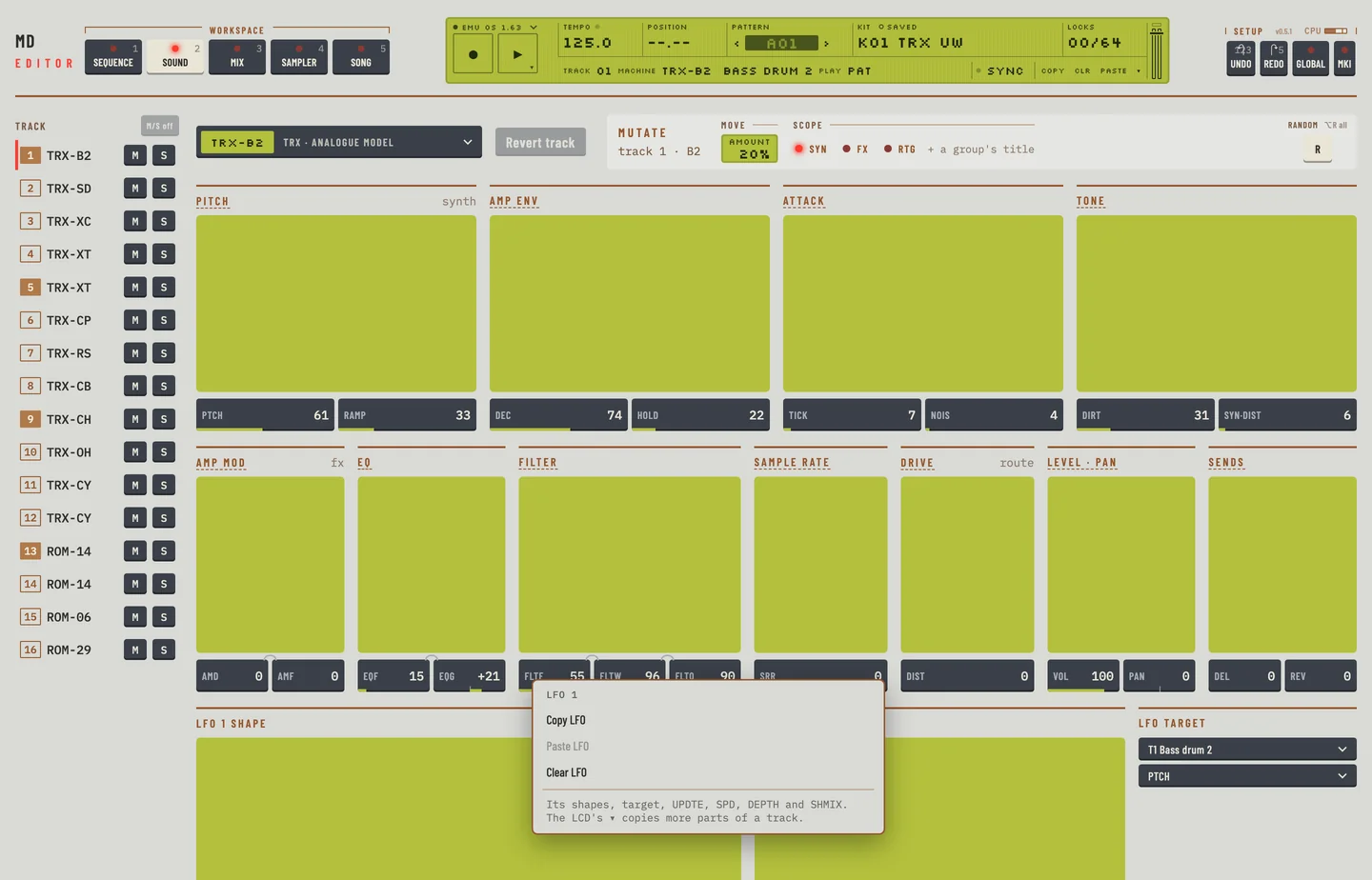
The LFO is also a part of Copy…, Paste… and Clear… in the LCD's ▾ menu: see "Track copy" in chapter 8.
LFO settings are stored in the kit. Save the kit to keep them.