Song mode
The song mode plays patterns in a set order. Each row of a song names a pattern and how it plays: how many times, the whole pattern or a part of it, with some tracks muted, at a tempo of its own. Command rows loop back, jump forward or halt the song.
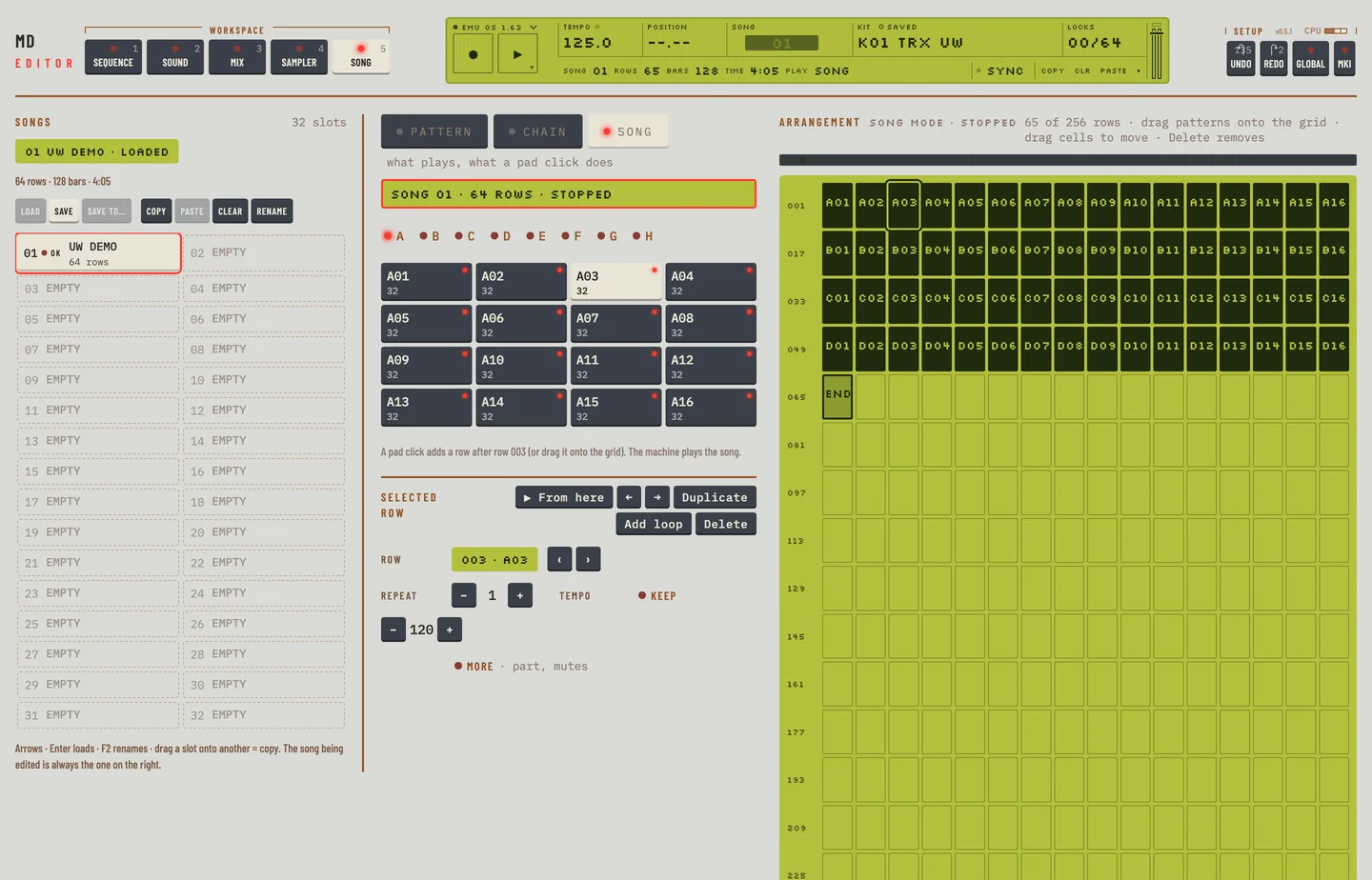
In the editor the song mode is the Song workspace. Press [5], or click the Song tab. The Songs column on the left holds the 32 song slots. The middle column holds the PATTERN, CHAIN and SONG keys over the pattern palette, and in song mode the Selected row. On the right, the Arrangement shows every row of the song as a cell, 16 cells to a line.
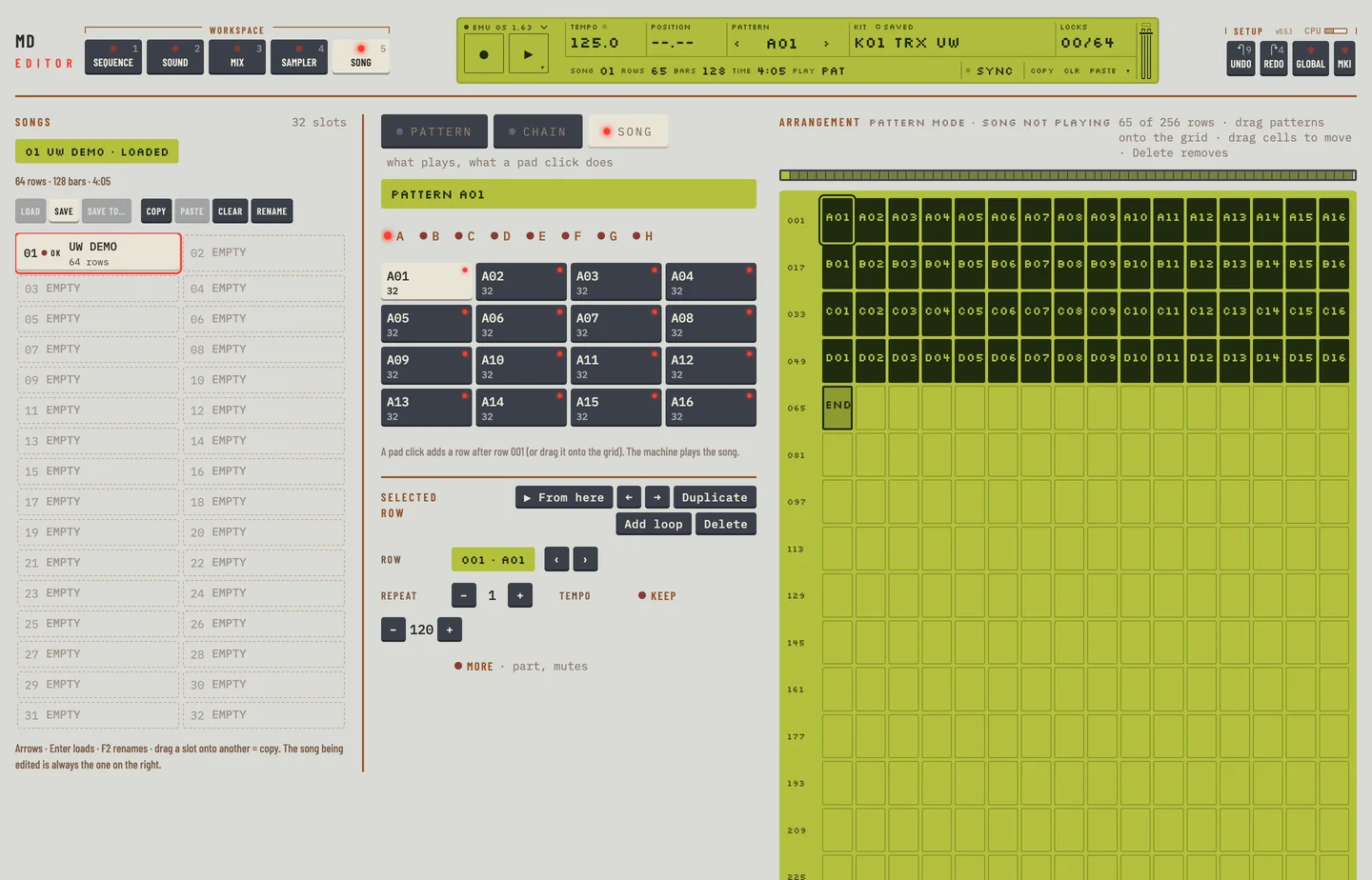
The machine plays the song. The editor writes the song into the machine and shows what the machine reports: the mode, the row that plays and the tempo.
The three keys over the palette say what the machine plays and what a click on a pad does:
- PATTERN: the machine is in pattern mode. A pad click goes to that pattern.
- CHAIN: the machine is in pattern mode and a pad click adds the pattern to its chain. See the pattern sequencer chapter.
- SONG: the machine is in song mode. A pad click adds a row to the song.
To put the machine in song mode:
- Click SONG.
- The key lights when the machine reports song mode. Click PATTERN to go back.
You can also click <PLAY> on the second line of the LCD, on every workspace. It reads PAT in pattern mode and SONG in song mode, and each click switches.
LOAD SONG #
MD manual p.51
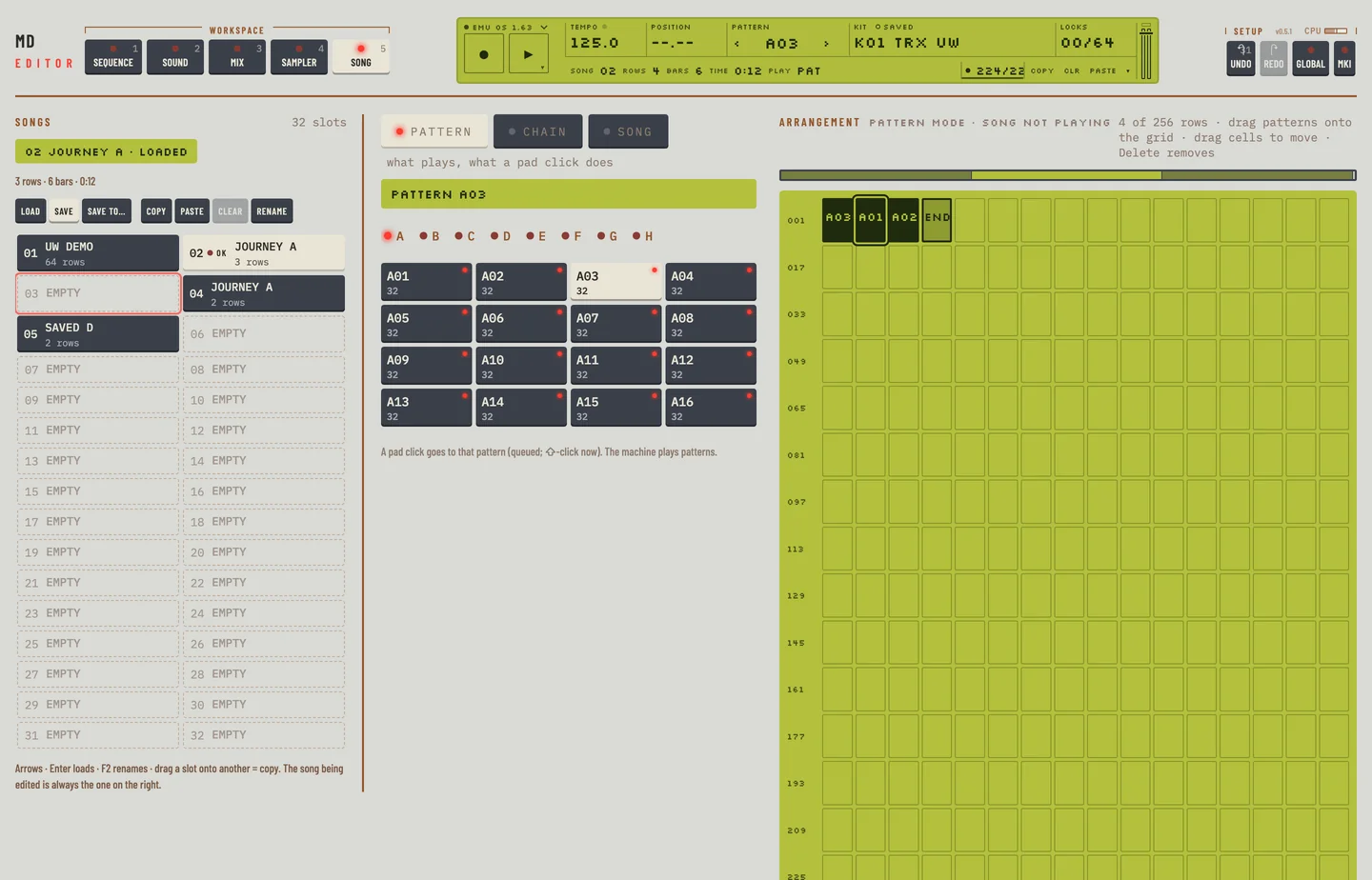
The Machinedrum holds 32 songs. A song has up to 256 rows. The song you see in the Arrangement is the song the machine holds. Its slot is lit in the Songs column, and the chip at the top of the column reads its number and name.
- Stop the machine. Press [SPACE] if it plays.
- Click a slot in the Songs column. The slot is selected. The machine still holds its song.
- Click Load, or press [ENTER]. The machine loads the song, and its slot is lit.
You can also click <SONG> on the second line of the LCD, or drag or scroll on it, to load the next song. Click with [⇧] to go back.
Each slot shows its number, its name and its rows. An empty slot reads EMPTY and is drawn faint. Press the arrow keys to move the selection while a slot has the focus.
PLAYING A SONG #
MD manual p.52
In song mode the machine plays the song from the first row, row by row, to the END row.
- Click SONG over the palette, or click <PLAY> on the LCD until it reads SONG.
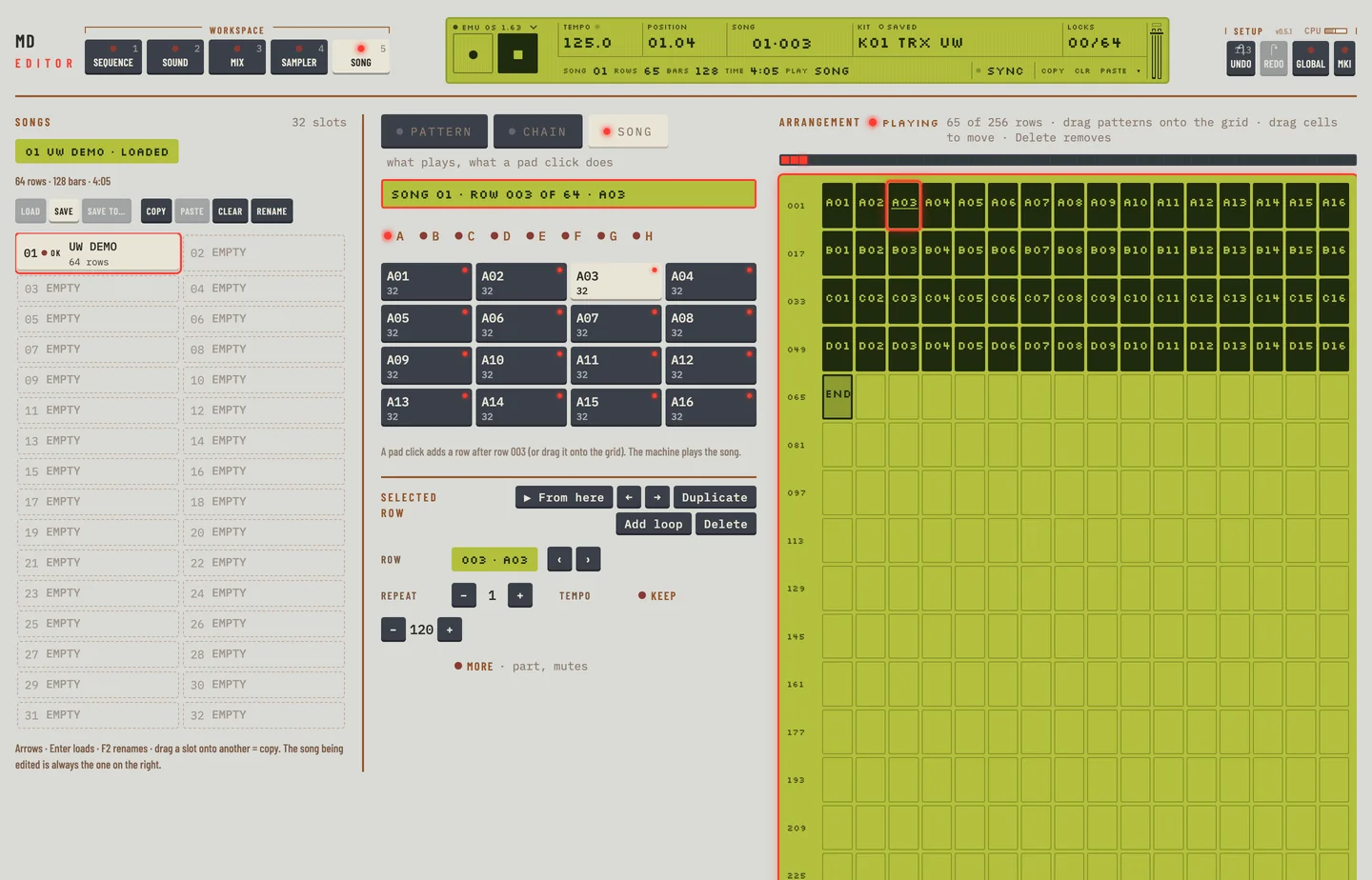
- Press [SPACE]. The song plays. The Arrangement header reads Playing and the arrangement is framed.
- Read what plays on the line over the bank letters: SONG 01 · row 017 of 65 · B01 means song 01, row 017 of 65 rows, pattern B01. The <PATTERN> field of the LCD reads the song and the row, for example 01·017.
- Press [SPACE] again to stop.
The playing row is marked in the arrangement, and the bar over it fills up to that row. When you press [SPACE] again, or the song ends, no row is marked.
You can go to pattern mode and back while the song plays. Click PATTERN: the machine plays a pattern. Click SONG to play the song again.
The line under the chip in the Songs column gives the length of the song as rows, bars and playing time at the current tempo. The time is an estimate. The LCD shows the same as <ROWS>, <BARS> and <TIME> on the second line of the Song workspace.
When the host sends a song position, the machine follows it. The editor has no control for this.
To pause a song, hold [⇧] and click the Play key, or press [⇧] + [SPACE]. The song holds its row and step. Click the Play key to go on from there.
A row that repeats shows how many more times it plays, as the machine counts them. The playing row reads +2, +1, then last, and the line over the bank letters ends with 2 more, 1 more or last. The next row shows no count.
SONG EDITING #
MD manual p.53
Add patterns
The pattern palette shows the 128 patterns by bank. Click SONG over it. Each pad gives the pattern's name and its length, or "empty".
- Click a bank letter.
- Click a pad. The pattern goes into the song after the selected row, and the new row is selected.
You can also drag a pad onto the arrangement. It lands on the cell you drop it on. Drop it on the empty end of the arrangement and the row is added at the end. The <BARS> count on the LCD goes up with each row.
Set how a row plays
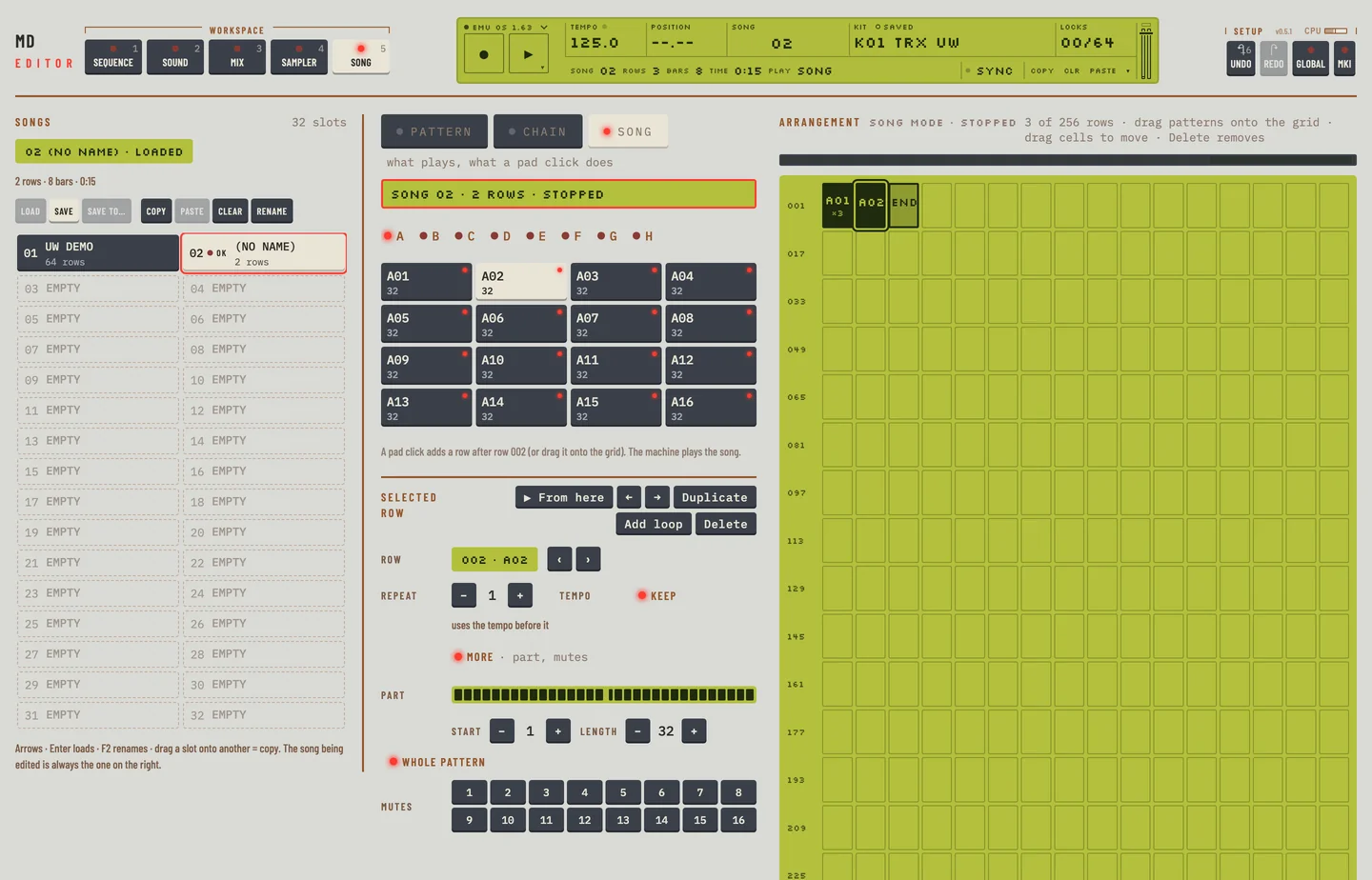
Select the row. The Selected row card shows its values.
- Row shows the row number and the pattern. Click ‹ or › to choose another pattern.
- Repeat sets how many times the row plays, 1 to 64.
- Tempo reads Keep while the row plays at the tempo before it. Click Keep to give the row a tempo of its own, then click − or +, 30 to 300 beats per minute. Click Keep again to take it off.
Hold [⇧] and click − or + to change a value ten at a time.
Change the rows
The buttons in the header of the Selected row card are:
- ← and → move the row one place.
- Duplicate copies the row to the place after it.
- Add loop adds a loop row. See "SONG LOOP".
- Delete removes the row.
You can also drag a cell to move it.
Copy, paste and undo
Press [⌘] + [C] to copy the selected row. Press [⌘] + [V] to put it after the selected row. Press [DELETE] or [BACKSPACE] to delete the row. Press [⌘] + [Z] to undo the last edit, and [⌘] + [⇧] + [Z] to put it back.
The END row
The last row of a song is END. The song stops there. New rows always go before it. The END row cannot be moved, duplicated or deleted.
Read the cells
The marks under a pattern name say what else the row does.
| Mark | Meaning |
|---|---|
| ×4 | the row plays four times |
| ~ | the row plays part of its pattern |
| ↺ and a row number | a loop back to that row |
| ×3 or ∞ | the loop plays three times, or for ever |
| → and a row number | a jump to that row |
| HALT | the song halts |
| END | the song ends |
A row that has a tempo of its own or muted tracks shows it in its cell as well. A tempo shows as a number, muted tracks as M and how many, for example 120 M3. When the cells are too narrow for words, letters stand for them: B for the tempo and M for the mutes. Hold the pointer over the cell to read them in full. Click the marks to open More for that row. A row with neither looks as before.
When the machine hears an edit
The editor writes each edit into the song on the machine. An edit is heard from the next start of the song. The editor loads the song into the machine again when the machine is stopped.
SONG ROW OFFSETS AND LENGTHS #
MD manual p.54
A row can play a part of its pattern, from a step you choose and for a number of steps you choose.
- Select the row and click More.
- The Part bar shows the pattern's steps and lights the steps the row plays.
- Click − or + beside Start to set the first step.
- Click − or + beside Length to set how many steps play.
- Click Whole pattern to play the pattern from step 1 to its end again.
The cell of a row with a part shows ~.
SONG TRANSPORT #
MD manual p.52
On the machine [STOP] holds the song where it is, and [PLAY] goes on from there. In the editor:
- Hold [⇧] and click the Play key, or press [⇧] + [SPACE]. The song holds its position. The Play key blinks.
- Click the Play key to go on from that position.
- To stop the song from the hold, choose Stop in the transport menu (right-click the Play key). The hold ends and the position goes.
SONG LOOP #
MD manual p.54
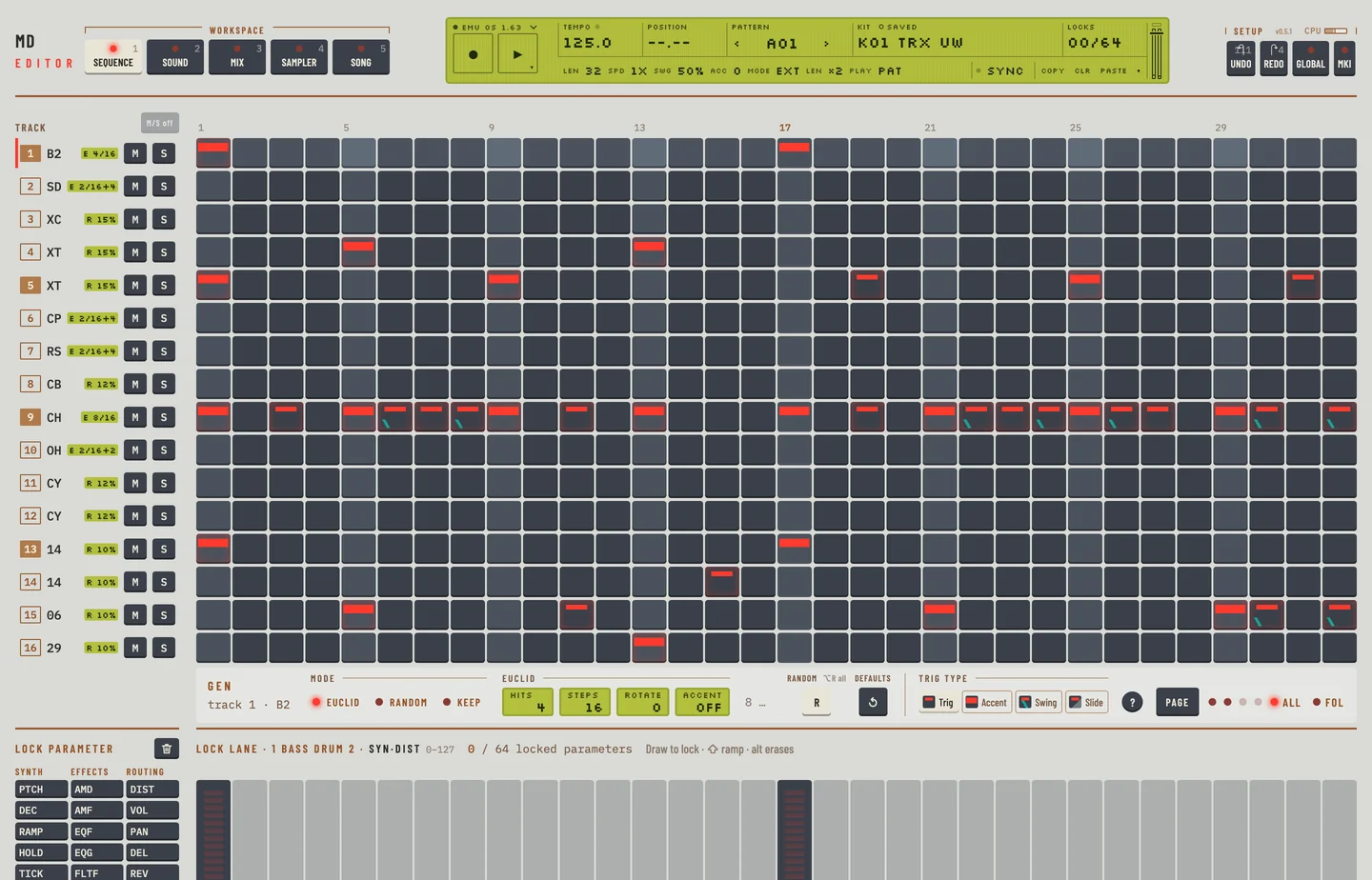
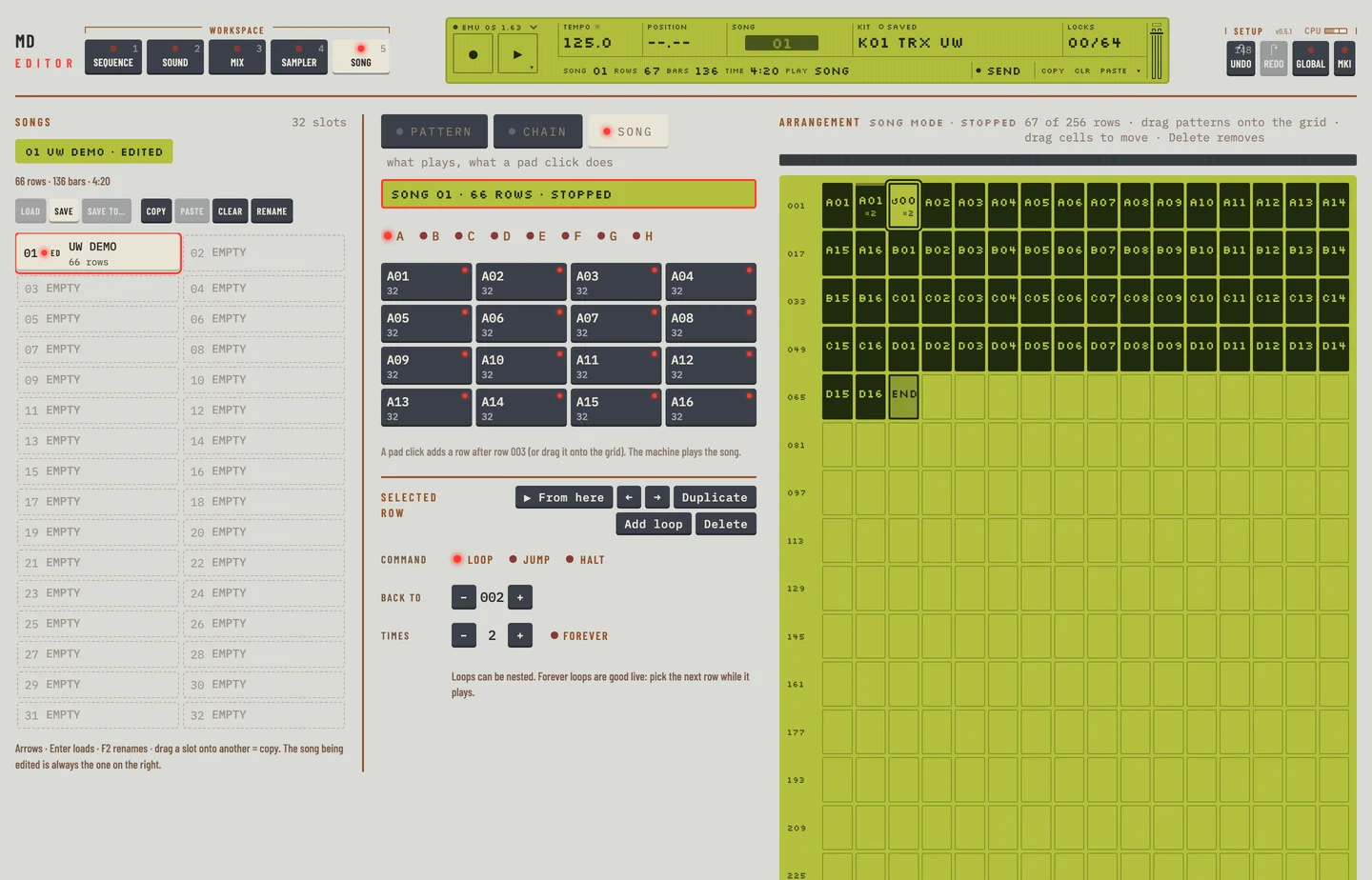
A loop row sends the song back to an earlier row, a set number of times. Loops keep a song short and its shape clear.
- Select the last row of the part to repeat.
- Click Add loop in the header of the Selected row card. A loop row goes in after it. Its cell reads ↺ and the row it goes back to.
- Click − or + beside Back to to set the first row of the part.
- Click − or + beside Times to set how many times the part plays, 2 to 64. Click Forever for a loop that never ends. The cell shows ∞.
SONG JUMP #
MD manual p.55
A jump row sends the song forward to a later row. The rows between are not played.
- Select a command row, or add one with Add loop.
- Under Command, click JUMP.
- Click − or + beside Jump to to set the row to go to. It has to be later than the jump. The cell reads → and that row.
SONG HALT #
MD manual p.55
A halt row stops the song where it stands. It waits there until you pick a row to go on from.
- Select a command row, or add one with Add loop.
- Under Command, click HALT. The cell reads HALT.
SONG MUTE #
MD manual p.55
A row can mute tracks while it plays.
- Select the row and click More.
- Under Mutes, click the keys 1 to 16. A muted track's key is dark. Click it again to unmute.
SAVE SONG #
MD manual p.56
The editor writes each edit into the slot of the song the machine holds as you make it. Save is the machine's SAVE SONG: the machine stores the song it holds into that slot, with its name.
Save a song
- Click Save.
- If the machine has not loaded your latest edits yet, the editor asks first. Click Load the edits, then save to store the song as you see it.
Save a song into another slot, with a name
- Select an empty slot, or a slot to write over, in the Songs column.
- Click Save to…. The slot shows a name field with the name of the machine's song.
- Type a name, up to 16 characters, and press [RETURN]. Press [ESC] to cancel.
The slot now holds the song, with the new name. The machine still holds the song it had.
Name a song
- Select the slot.
- Click Rename, press [F2], or double-click the slot.
- Type the name and press [RETURN].
Names are in capitals. The editor keeps to letters, digits, spaces and a few signs.
Copy, paste and clear a slot
- Select a slot and click Copy, or press [⌘] + [C].
- Select another slot and click Paste, or press [⌘] + [V]. The slot holds a copy of the song, with its name.
You can also drag a slot onto another. The song is copied there.
To empty a slot, select it and click Clear, or press [DELETE] or [BACKSPACE]. The rows and the name are removed. The slot reads EMPTY.
When a paste, a copy or Clear would write over a song, the editor asks first. Click Clear song to answer the question of a clear: the slot is empty and quiet. Press [⌘] + [Z] to undo a paste, a copy, a name or a clear, and [⌘] + [⇧] + [Z] to do it again.