Quick start
This chapter takes you through the first things you do with the machine: choose a pattern, hear it, change it and record into it. Each part gives the steps in the editor and says where they differ from the Monomachine's panel. The editor must be running with the firmware image loaded, and the LCD must show the kit and the pattern.
SELECTING AND PLAYING #
MM manual p.1-11
A pattern recalls the kit it was saved with. When you pick a pattern, the machine loads its kit.
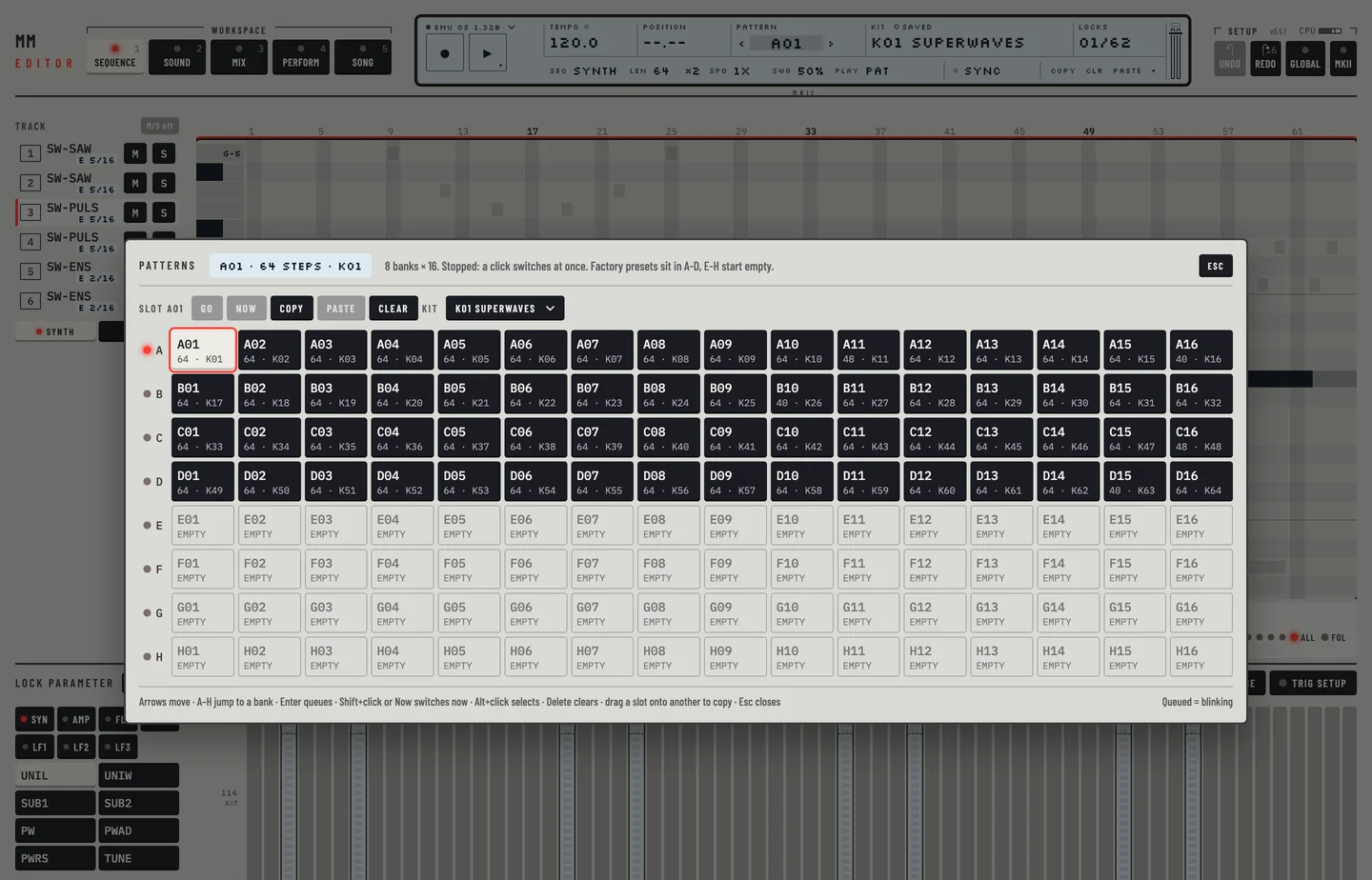
- Click the <PATTERN> field in the LCD. The pattern chooser opens: 8 banks, A to H, of 16 patterns.
- Click a pattern. Stopped, the machine switches at once. Playing, it queues the pattern and starts it when the current pattern ends. The name in the LCD blinks while it waits.
- To switch at once while the machine plays, hold [⇧] and click, or click Now.
- Press [SPACE]. The machine plays and the <POSITION> field counts.
- Press [⇧] + [SPACE] to pause, and again to go on. Press [SPACE] to stop.
You can also step through patterns with the ‹ and › keys beside the name. While the machine plays, click ›. The next pattern is queued and starts when the current one ends. Stop the machine and click ‹ to go back.
Press [SPACE] again to stop.
PLAYING IN MULTI TRIG #
MM manual p.1-12
In multi trig mode one source plays all six tracks. To use it:
- Go to the Perform workspace ([4]).
- In the Keyboard card, click Multi trig.
- Click or drag across the on-screen keyboard. Every track plays the note. The lamps below the keyboard flash for each track that sounds.
Multi trig takes its notes on MIDI channel 7. Chapter 5 describes the other keyboard modes.
EXPLORING A PATTERN #
MM manual p.1-12
Play the pattern and listen to each track.
- Click a track in the rail to select it.
- Press [M] to mute it, or S in its rail row to solo it.
- Go to the Kit workspace ([2]) and drag the values of the track. The sound changes as you drag.
- Play the track from your keyboard with [A S D F G H J K L].
The piano roll plays the pitch of a note when you click it.
GRID RECORDING #
MM manual pp.1-12, 1-13
In grid recording you place notes on the steps of a pattern one by one. The machine does this with the TRIG keys. In the editor you draw in the piano roll of the Pattern workspace.
- Go to the Pattern workspace ([1]) and select a track.
- If you want the pattern's own kit, open the kit library and load it: click <KIT>, choose a kit, click Load. Chapter 6 describes the library.
- Click an empty step in the roll. A note goes on it, as long as the Len key says.
- Drag the end of the note to make it longer or shorter, drag it up or down to change its pitch, or sideways to move it.
Click a note to select it. It stays selected, and [DELETE] or [BACKSPACE] removes it. Double-click a note to remove it at once. With one note selected, [↑] and [↓] change its pitch by a semitone. Deleting a note writes no NOTE OFF: the note before it runs on to the next trig or NOTE OFF, as on the machine.
To paint the same note on several steps, drag sideways. The steps you cross get the note. A drag is one undo step. Hold [⌥] and drag over the notes to erase them, which is also one undo step.
To set how long a note is:
- Check that Draw is lit and the Len key reads 1/16.
- Click an empty step. A note of one sixteenth goes on it and a NOTE OFF on the step after, so it does not run into the next note.
- Click the Len key to make it 1/8, then click another empty step. The note is two steps long.
- Drag the end of the first note over two more steps. It lasts three steps, up to the next note, and new notes get 3/16.
- Press [⌘] + [Z] to take the changes back one by one.
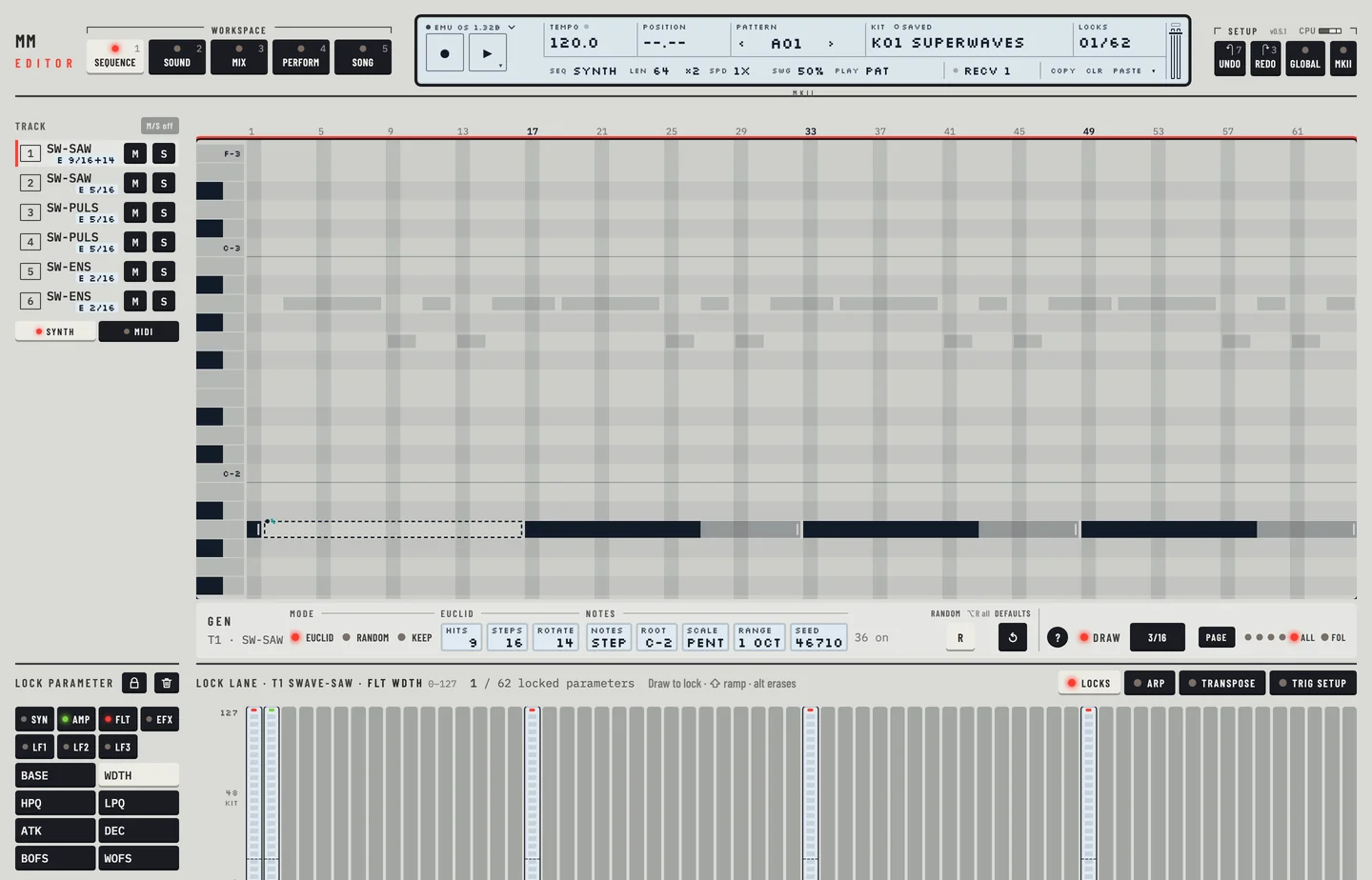
To place a note off, which stops the sound at a step, hold [⌥] and click an empty step. You can also drag the end of a note: the note's length is the distance to its NOTE OFF.
For a chord note on a step, hold [⇧] and click the roll there. Right-click a step for the step menu (Ctrl-click on a Mac). It offers a note on or off, NOTE OFF, a trigless trig, the envelopes a trig fires, slide, swing and a chord note.
LIVE RECORDING #
MM manual p.1-13
In live recording you play the keys while the pattern runs, and the machine writes the notes to the steps that play. The firmware quantises them.
- Select the track to record.
- Press [⌥] + [SPACE]. The machine starts if it was stopped, and the record light comes on. Clicking the record key while the machine plays does the same.
- Play with [A S D F G H J K L] or the on-screen keyboard.
- Press [⌥] + [SPACE] again to stop recording. If the editor says the panel is busy, wait a moment and press it again.
To erase while recording, hold [DELETE] or [BACKSPACE], the machine's [EXIT]. The selected track's notes go on each step that plays while the key is down. The other tracks keep their notes. Let go of the key, switch recording off and stop the machine.
PARAMETER LOCKS #
MM manual pp.1-13, 1-14
A parameter lock gives one parameter a value of its own for one step.
Lock a value
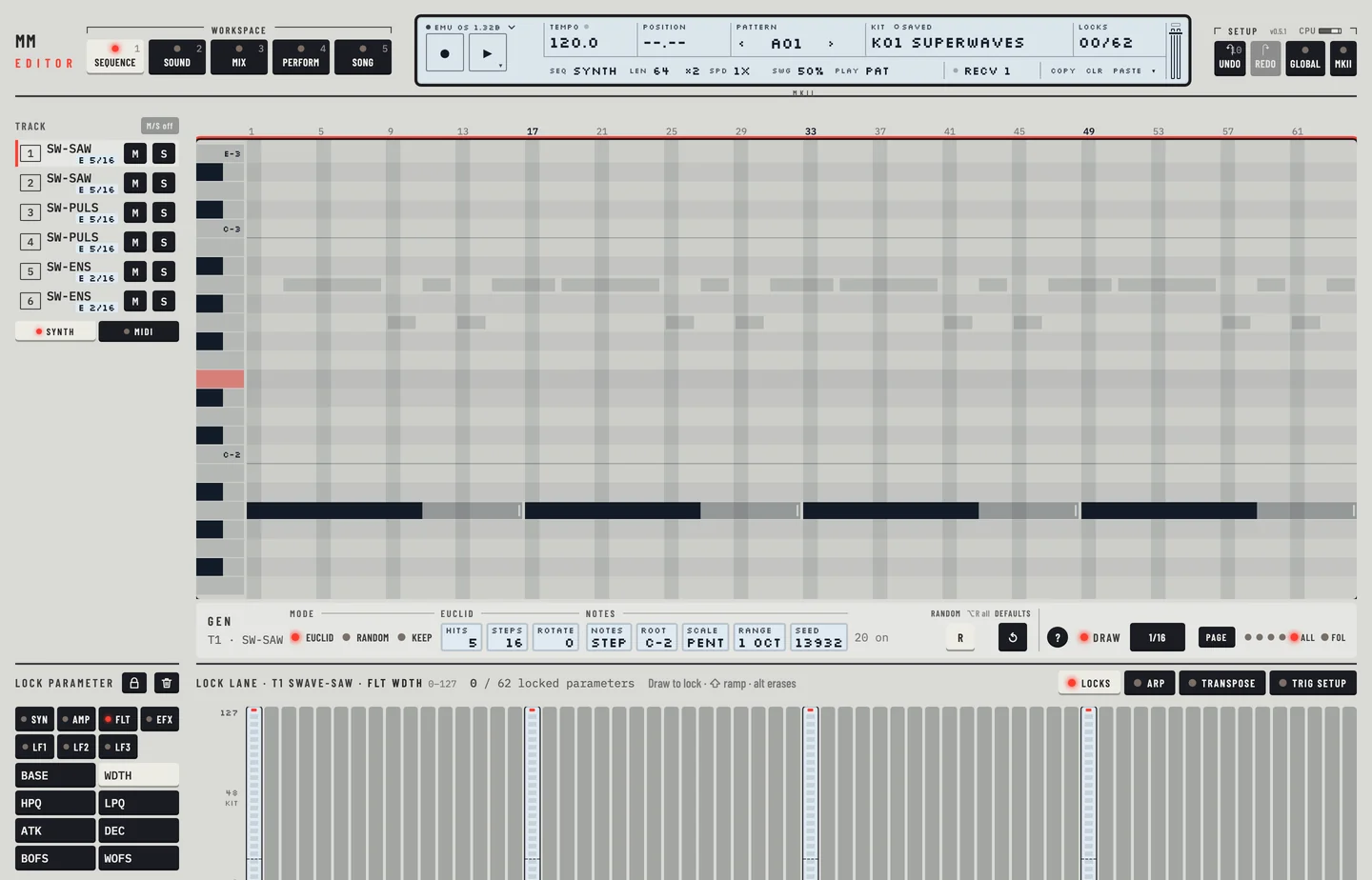
- In the Pattern workspace, click the Locks tab under the roll, then a page tab in the rail, for example FLT.
- Click the parameter, for example BASE. The lock lane under the roll now edits it.
- Drag over the bars of the lane. Each step with a trig gets a lock with the value where you dragged.
- To draw a straight line of values, hold [⇧] and drag from a step that has no lock. The locks make a ramp over the notes. Hold [⇧] on a lock and drag sideways to draw a slide to the next lock instead (see "Slide" in chapter 15).
- To set a locked value from the keys, turn the wheel over a lock step. Each notch is 4, and [⇧] makes it 1.
The lane draws a solid line at the kit value of the parameter, with its number. Drag the line up or down to change the kit value. A lock on a step with no trig is drawn hatched, as a ghost bar: the machine plays it, from that step until the next trig. Hold [⌥] and click it to remove it.
The <LOCKS> field of the LCD counts the locked parameters of the pattern, out of 62.
Lock live
While live recording plays, turn a value on the Kit workspace. The machine records the value as a lock on the step that plays when the value arrives. The editor marks that step in the trig row and in the lock lane, for about three seconds, and a note says which value it locked.
Remove locks
- Hold [⌥] and drag over the lane to erase the locks of one parameter.
- The clear key in the rail header clears the locks of the parameter you are looking at. Hold [⌥] and click it to clear every lock of the track.
- Right-click a step and choose Clear locks (keep the notes). The step loses its locks and keeps its note. On a selected step it works on the whole selection.
- Select a step and click the ⋯ on it, or right-click it, and choose Clear locks. Press [⌘] + [Z] to bring the locks back.
- Select a step and press [DELETE] or [BACKSPACE]. The step loses its note, its slide and its locks together.