The song mode
The song mode plays patterns in a set order. Each row of a song names a pattern and how it plays: how many times, transposed or not, the whole pattern or a part of it, with some tracks muted, at a tempo of its own. Command rows loop back, jump forward or halt the song. Use a song for a finished arrangement, or for a set of loops to play live.
The Monomachine holds 24 songs. A song has up to 200 rows.
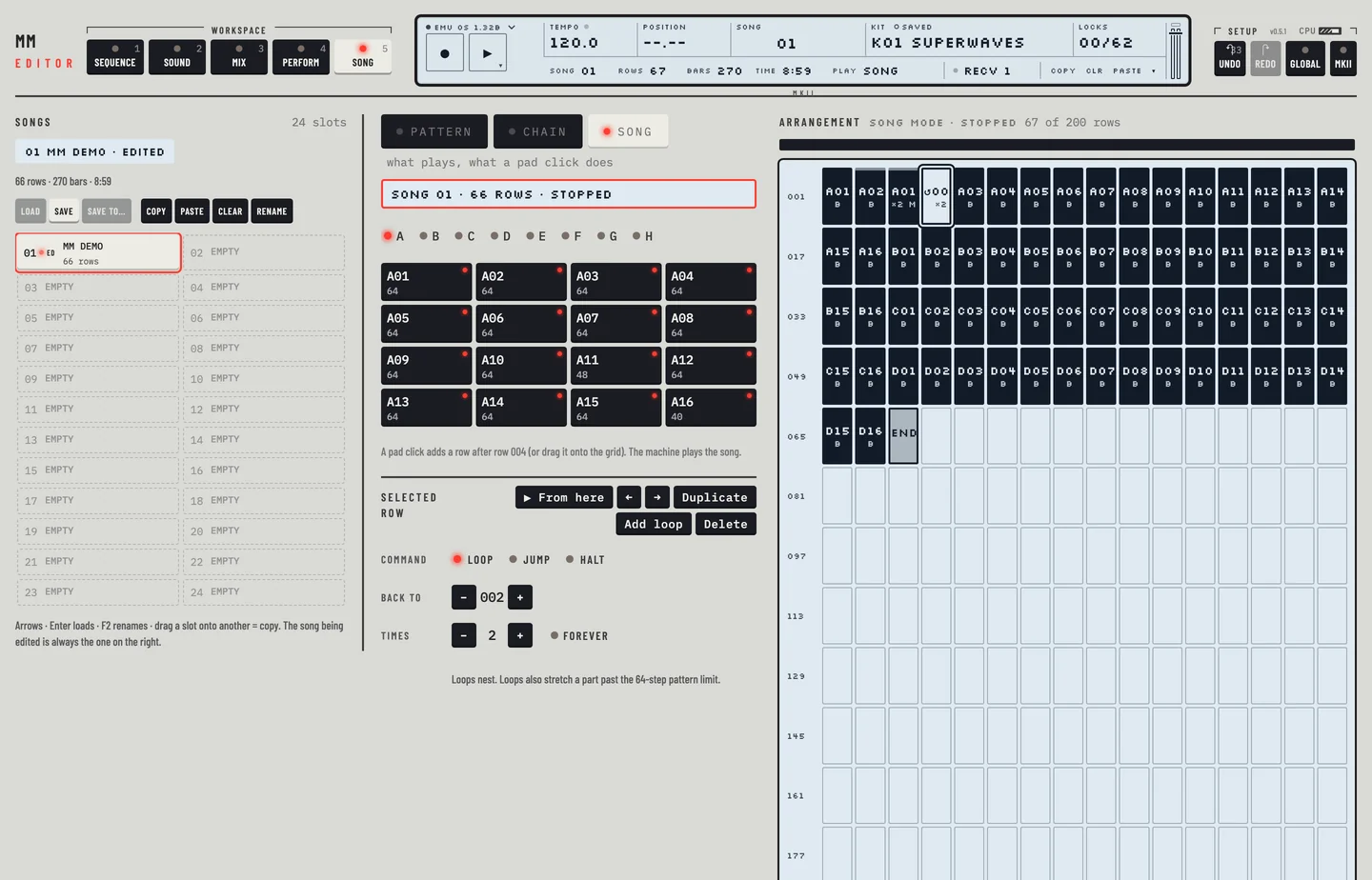
In the editor the song mode is the Song workspace. Press [5], or click the Song tab. The Songs column on the left holds the 24 song slots. The middle column holds the PATTERN, CHAIN and SONG keys over the pattern palette, and in song mode the Selected row. On the right, the Arrangement shows every row of the song as a cell, 16 cells to a line.
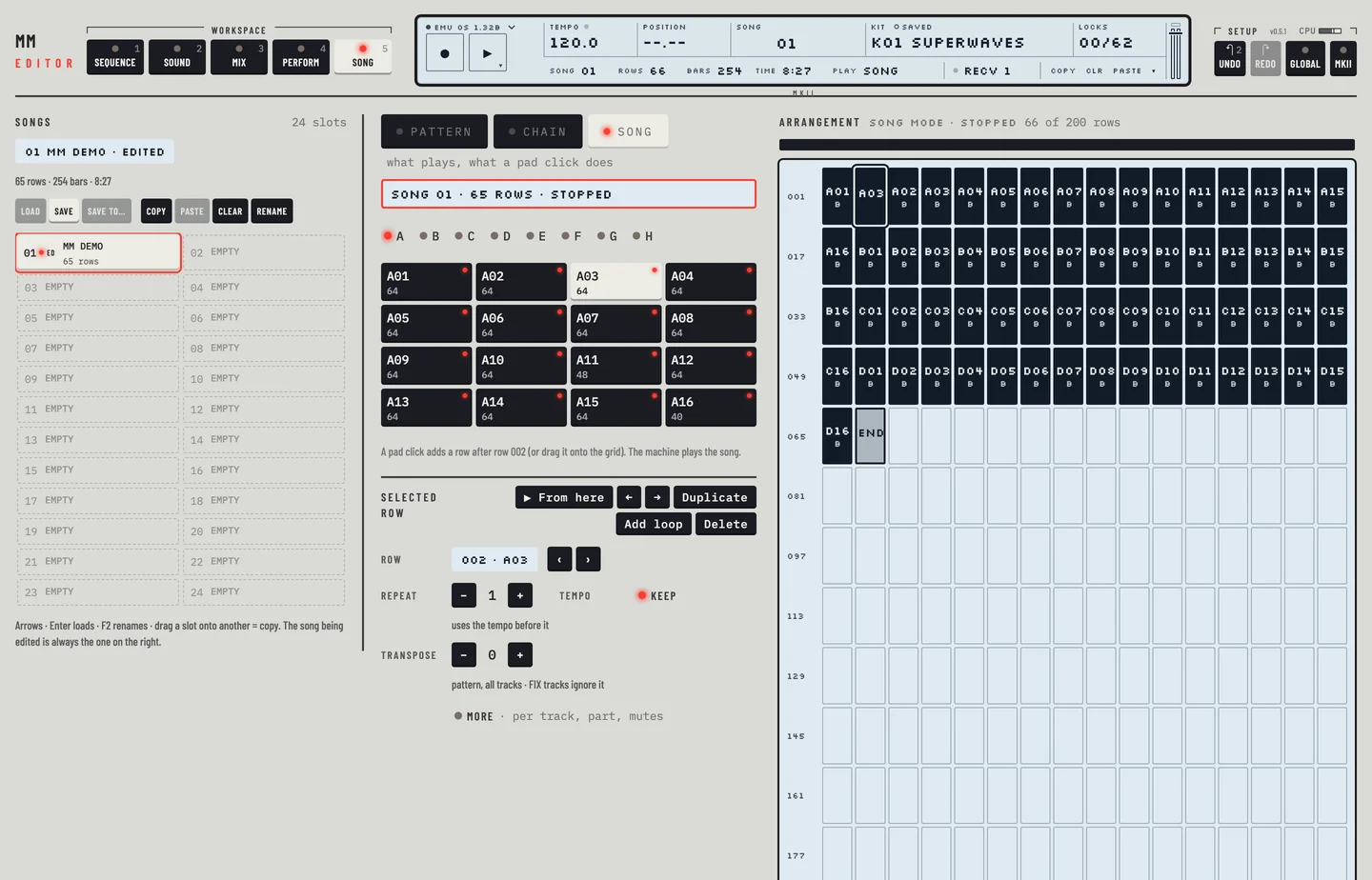
The machine plays the song. The editor writes the song into the machine and shows what the machine reports: the mode, the row that plays and the tempo.
The three keys over the palette say what the machine plays and what a click on a pad does:
- PATTERN: the machine is in pattern mode. A pad click goes to that pattern.
- CHAIN: the machine is in pattern mode and a pad click adds the pattern to its chain.
- SONG: the machine is in song mode. A pad click adds a row to the song.
To put the machine in song mode:
- Click SONG.
- The key lights when the machine reports song mode. The line over the bank letters reads the song number and its row count, for example SONG 01 · 65 rows · stopped.
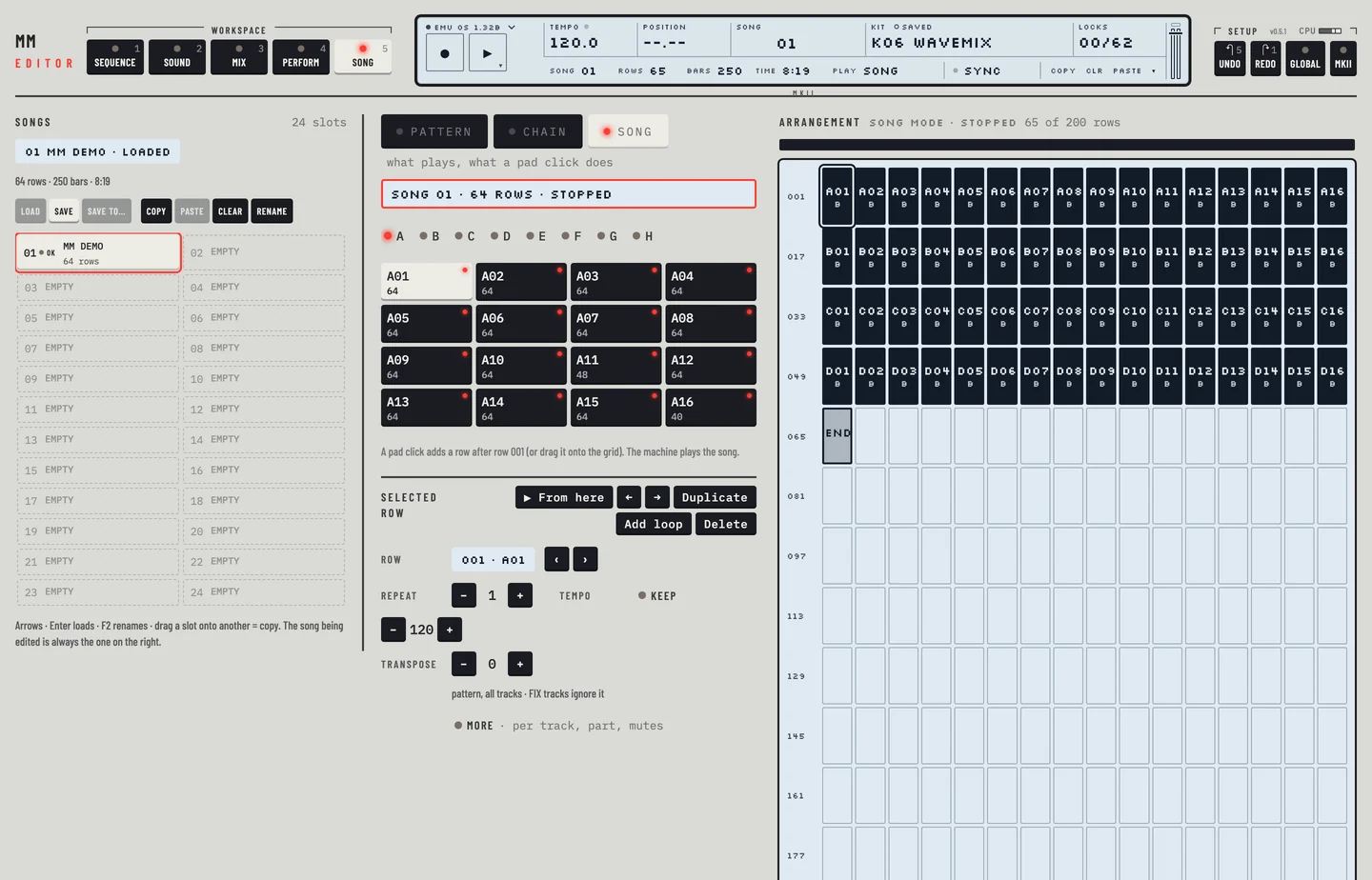
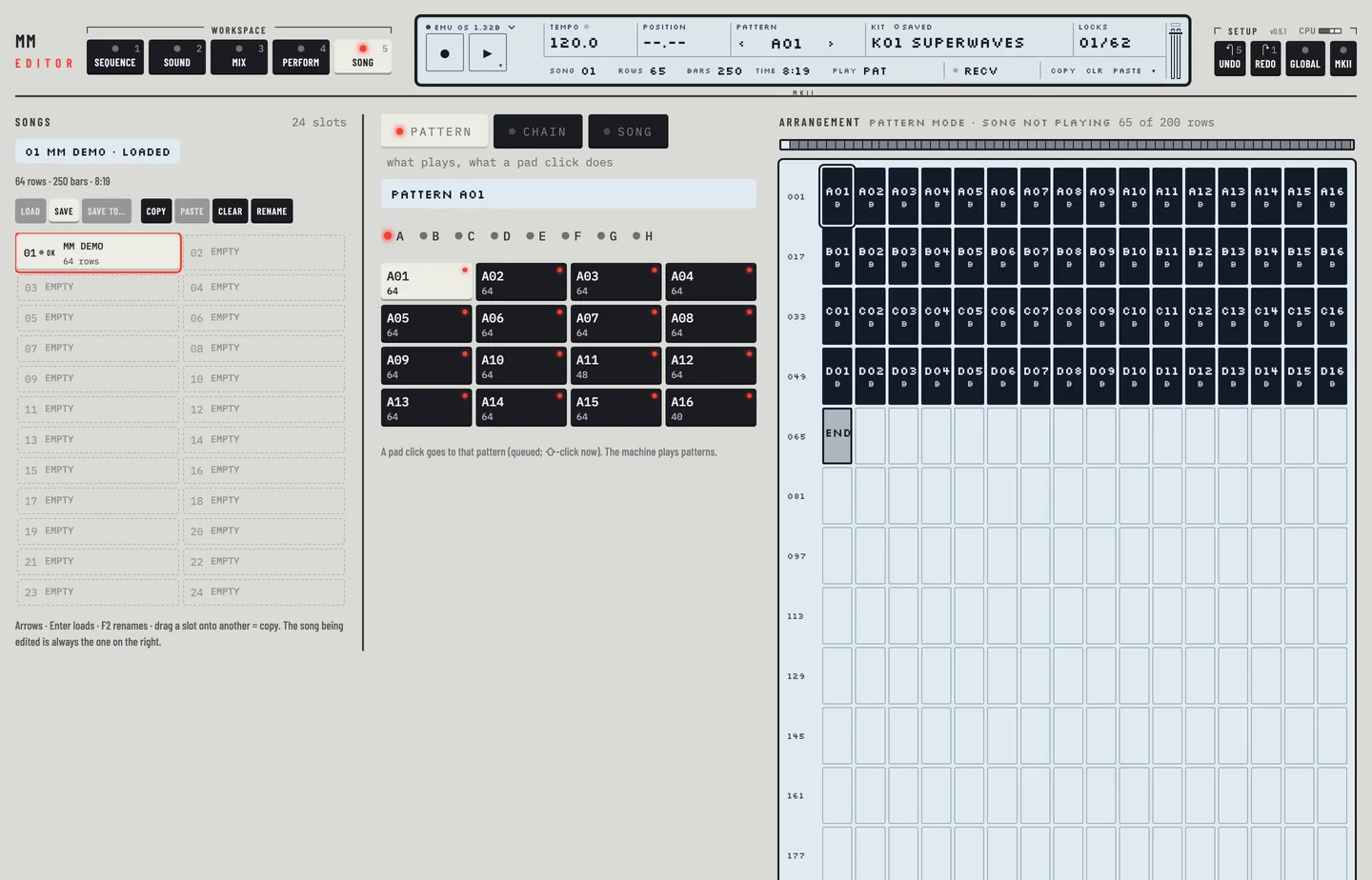
On PATTERN the machine plays patterns and a pad click queues that pattern. On CHAIN the pads number the chain and the machine stays in pattern mode. On SONG the pads add rows and the Selected row card shows.
On the machine you press [PATTERN/SONG]. In the editor you can also click <PLAY> on the second line of the LCD, on every workspace: it reads PAT in pattern mode and SONG in song mode, and each click switches.
LOAD SONG #
MM manual p.1-73
Loading a song makes it the song the machine plays in song mode, and the song the Arrangement shows. Its slot is lit in the Songs column, and the chip at the top of the column reads its number and name.
- Stop the machine. Press [SPACE] if it plays.
- Click a slot in the Songs column. The slot is selected. The machine still holds its song.
- Click Load, or press [ENTER]. The machine loads the song, and its slot is lit.
A paused machine is not stopped, and it keeps its song: the editor says so and asks you to stop it first. In a DAW, the host's Stop (or a MIDI Stop from the DAW) stops the machine, so you can load a song after it, also with LOAD SONG SysEx from the DAW. The host's Play then plays the loaded song from row 1.
After you edit the song in song mode, the editor loads the edited song itself. You do not load it by hand.
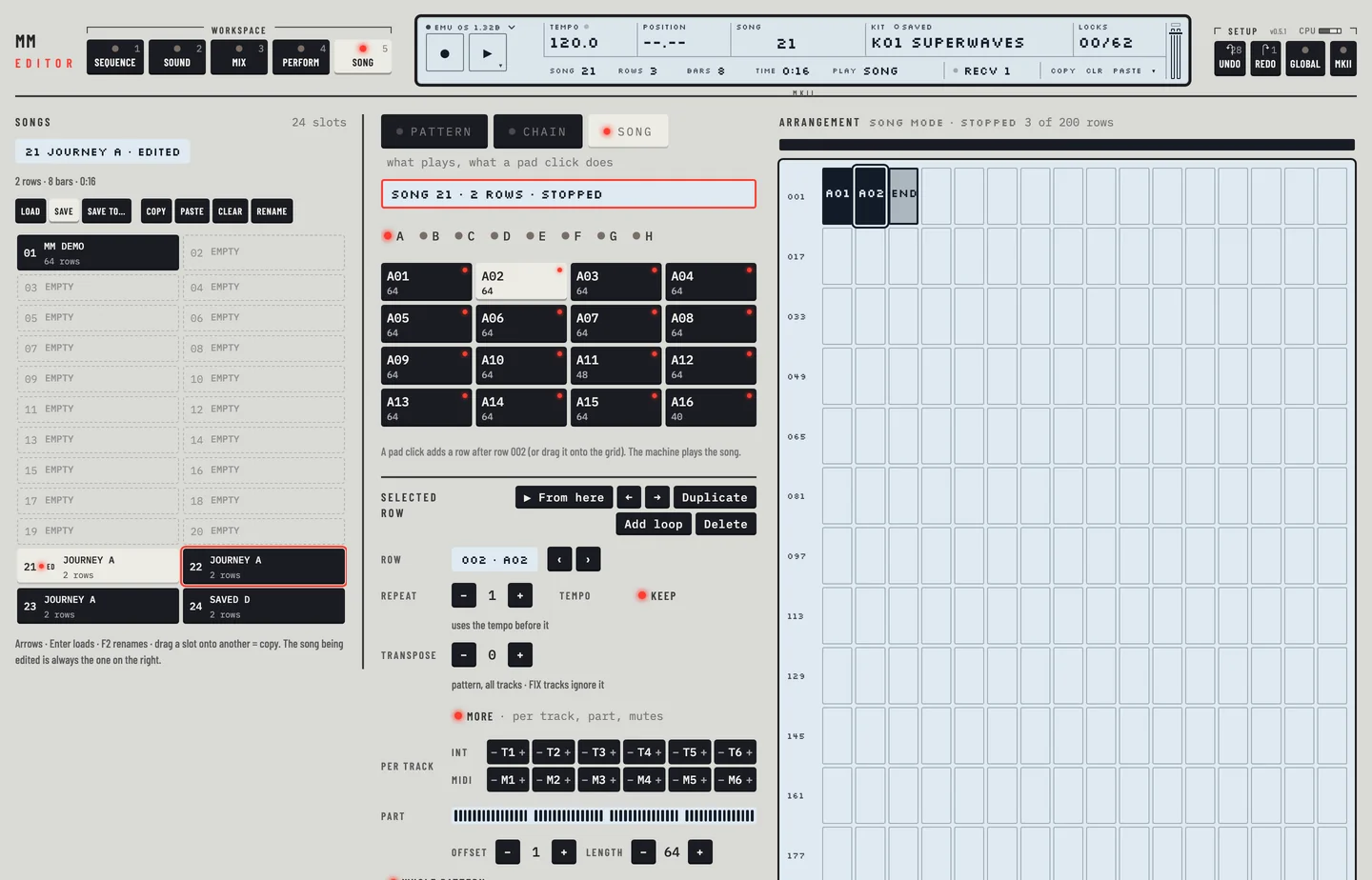
Each slot shows its number, its name and its rows. An empty slot reads EMPTY and is drawn faint. Press the arrow keys to move the selection while a slot has the focus.
SAVE SONG #
MM manual p.1-74
The editor writes each edit into the slot of the song the machine holds as you make it. Save is the machine's SAVE SONG: the machine stores the song it holds into that slot, with its name.
Save a song
- Click Save.
- If the machine has not loaded your latest edits yet, the editor asks first. Click Load the edits, then save to store the song as you see it.
Save a song into another slot, with a name
- Select an empty slot, or a slot to write over, in the Songs column.
- Click Save to…. The slot shows a name field with the name of the machine's song.
- Type a name, up to 14 characters, and press [RETURN]. Press [ESC] to cancel.
The slot now holds the song, with the new name. The machine still holds the song it had.
Name a song
- Select the slot.
- Click Rename, press [F2], or double-click the slot.
- Type the name and press [RETURN].
Names are in capitals. The editor keeps to letters, digits, spaces and a few signs.
Copy, paste and clear a slot
- Select a slot and click Copy, or press [⌘] + [C].
- Select another slot and click Paste, or press [⌘] + [V]. The slot holds a copy of the song, with its name.
You can also drag a slot onto another. The song is copied there.
To empty a slot, select it and click Clear, or press [DELETE] or [BACKSPACE]. The rows and the name are removed. The slot reads EMPTY.
When a paste, a copy or Clear would write over a song, the editor asks first. Press [⌘] + [Z] to undo a paste, a copy, a name or a clear.
SONG PLAY #
MM manual p.1-75
In song mode the machine plays the song from row 001, row by row, to its END row.
- Click SONG over the palette, or click <PLAY> on the LCD until it reads SONG.
- Press [SPACE]. The song plays. The Arrangement header reads Playing and the arrangement is framed.
- Read what plays on the line over the bank letters: SONG 01 · row 017 of 65 · B01 means song 01, row 017 of 65 rows, pattern B01. The pattern field of the LCD reads the song and the row in the same way.
- Press [SPACE] again to stop. The mark leaves the arrangement.
The Arrangement marks the row that plays. It moves from row 001 to row 002 as the first row ends.
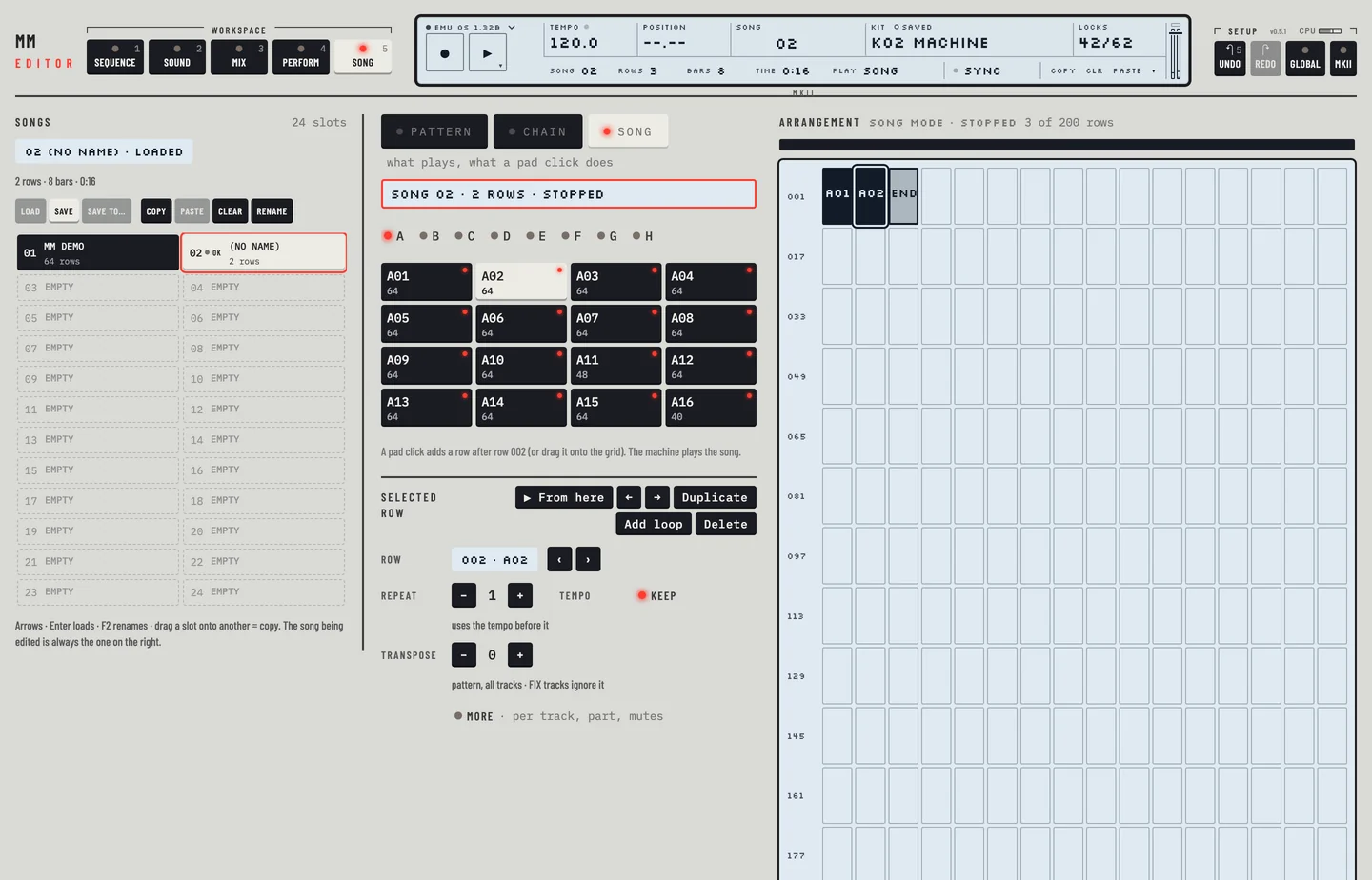
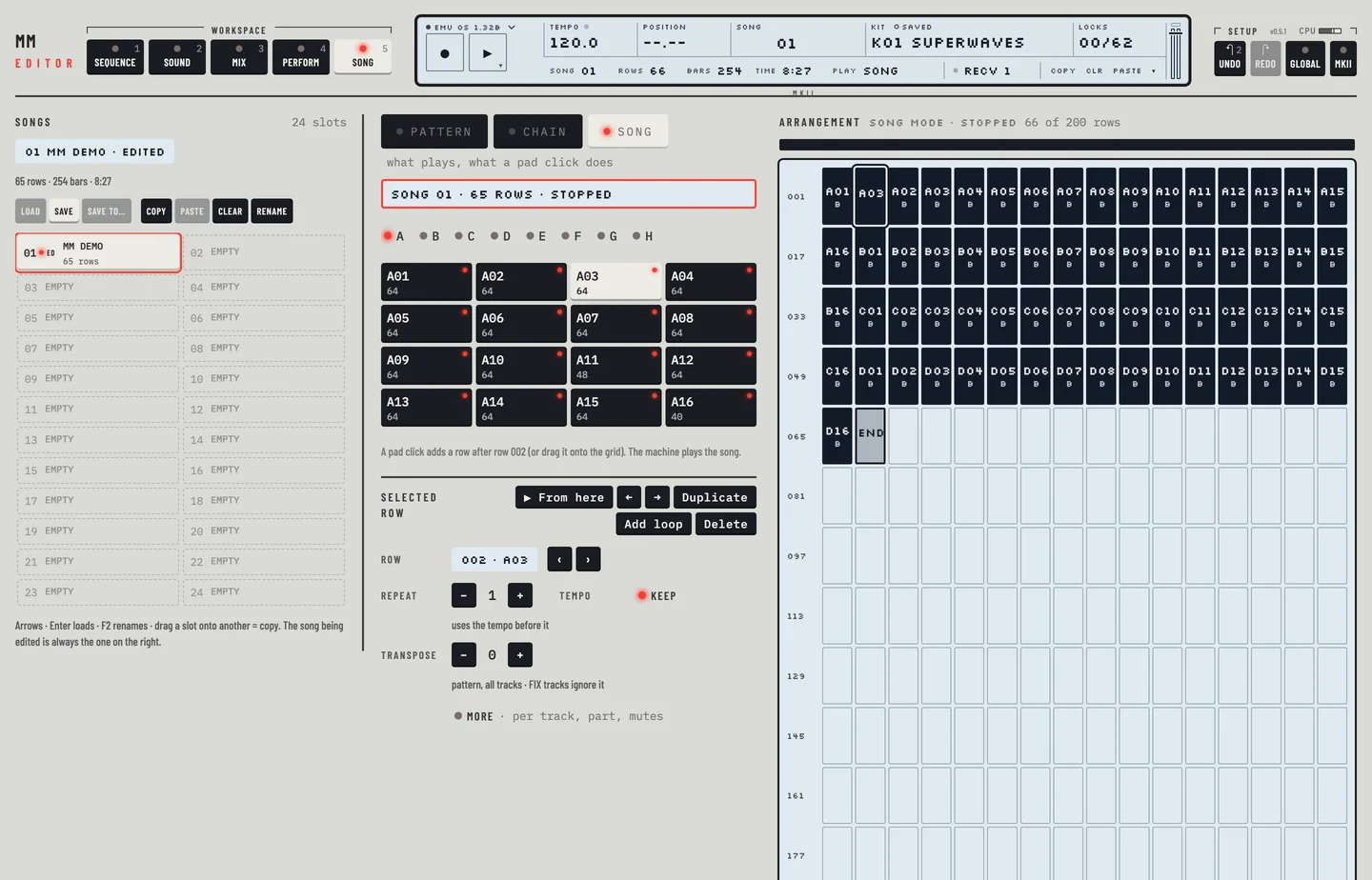
You can go to pattern mode and back while the song plays. Click PATTERN: the machine plays a pattern and holds its place in the song. Click SONG and the song goes on from that place.
On the machine [PLAY] pauses a song that plays, and [STOP] stops it. In the editor hold [⇧] and click the play key, or press [⇧] + [SPACE]: the song holds its row and step, and the play key blinks. Click the play key to go on from there. [SPACE] stops.
SONG TRANSPORT #
MM manual p.1-75
On the machine you move the song pointer to another row while the song plays, and the song goes on from there when the current row ends. In the editor you start the song from the row instead:
- Click the row's cell in the Arrangement.
- Click ▶ From here in the Selected row card, or press [ENTER].
- The editor asks to set <TRANSPORT> to ACCEPT. Confirm. The machine takes ACCEPT, goes to song mode and plays from that row.
To start from another row, click row 2 and press [ENTER] again.
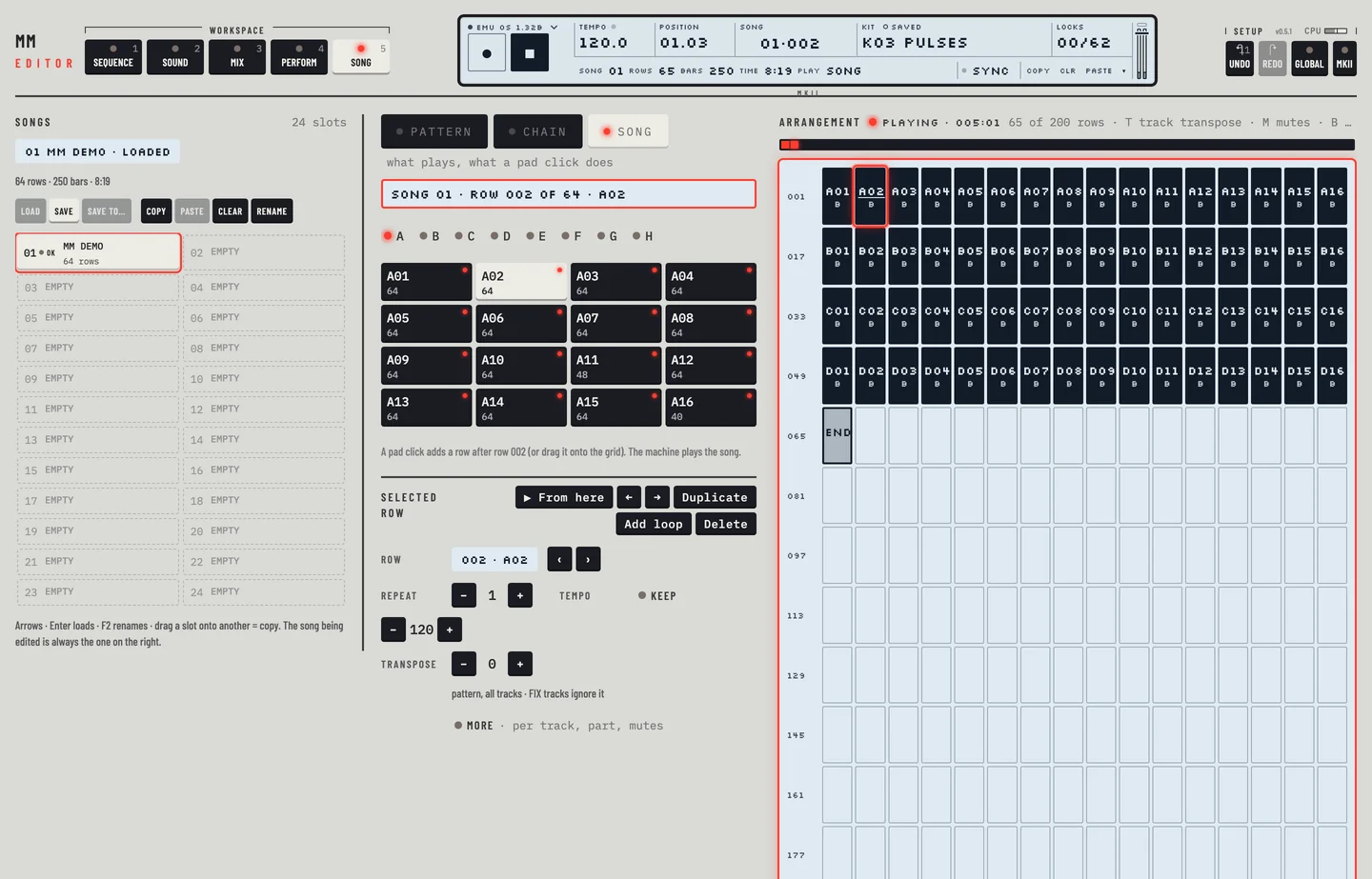
The machine goes to SONG mode if it was in pattern mode and plays the song from the first step of that row. The editor sends the machine a MIDI song position, the steps of the rows before it, and then Continue.
The editor shows where the song is. While the song plays, the Arrangement marks the row that plays and the bar above the grid fills up to it. The mark comes from the machine itself, so it follows repeats, loops and jumps.
SONG EDITING #
MM manual pp.1-76, 1-77, 1-79, 1-80
The Arrangement is where you build the song. Each cell is a row: the pattern it plays, with marks under the name for what else the row does. You can edit the song while it plays.
On the machine each row has columns that you step through with the arrow keys and set with the LEVEL knob. In the editor you select a cell and set the row in the Selected row card.
| On the machine | In the editor |
|---|---|
| ROW | the place of the cell in the Arrangement, 001 to 200 |
| PAT | the pattern name in the cell; ‹ and › in Selected row |
| REP | Repeat |
| TRN | Transpose; single tracks under More |
| OF LN | Part, under More |
| XTRA | Tempo; Mutes, under More |
Select a row
- Click a cell in the Arrangement.
- Press [←] or [→] for the row before or after.
- Click a bar in the time bar above the grid. Each bar is as long as its row plays.
The last row of every song is END. The song stops there.
Add patterns
- Click SONG over the pattern palette.
- Click a bank, A to H. The pads show its 16 patterns, each with its length, or "empty".
- Click a pad. A new row with that pattern goes in after the selected row, and becomes the selected row.
You can also drag a pad onto the Arrangement. Drop it on a cell and that row plays the new pattern. Drop it on the free cell after the last row and a new row goes in before END.
Set a row
- Select the row.
- Click ‹ or › to step to the pattern before or after.
- Click + beside Repeat to set how many times the row plays, 1 to 64.
- Click − or + beside Transpose to transpose all the tracks of the pattern for this row, in semitones.
Hold [⇧] and click − or + to change a value by ten.
Play part of a pattern
A row can play part of its pattern: from a start step, for a number of steps. Use it to build odd bar lengths, or to swap the end of a pattern for a fill.
- Select the row and click More.
- Under Part, set Offset, the first step that plays, and Length, the number of steps. The bar above shows the steps that play.
- To play the whole pattern again, click Whole pattern.
Insert, move and delete rows
- Duplicate puts a copy of the selected row after it.
- ← and → in the Selected row header move the row one place earlier or later. You can also drag a cell to another place.
- Delete, [DELETE] or [BACKSPACE] or <CLR> on the LCD deletes the selected row. Press [⌘] + [Z] to bring it back.
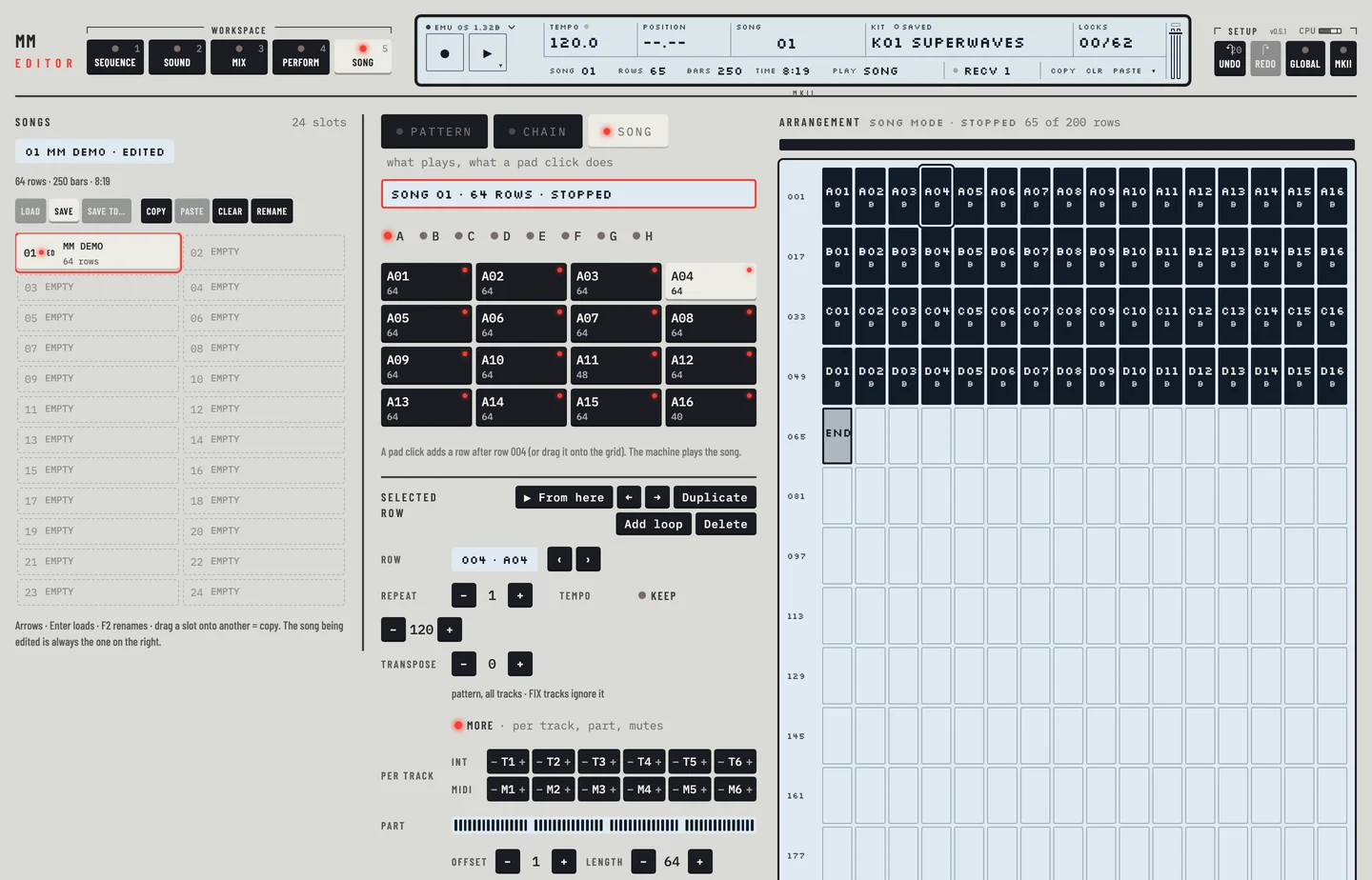
On the machine you insert a row with [FUNCTION] + [DOWN] and remove one with [FUNCTION] + [UP]. In the editor a new row comes from a pad, from Duplicate or from a paste.
Copy, paste and undo
- Select a row and press [⌘] + [C], or click <COPY> on the LCD.
- Select the row to paste after.
- Press [⌘] + [V], or click <PASTE>. The copy goes in after the selected row, with the same pattern, repeats, transpose and mutes.
Press [⌘] + [Z] to undo the last edit.
Read the cells
The marks under a pattern name say what else the row does.
| Mark | Meaning |
|---|---|
| ×4 | the row plays four times |
| 120 | the row has a tempo of its own, in beats per minute |
| M3 | three tracks are muted |
| +5, −7 | the row's transpose, in semitones |
| T± | single tracks are transposed |
| ~ | the row plays part of its pattern |
The marks come in that order, for example 120 M3 +2 T±. A row with none of them shows none. When the cells are too narrow for words, letters stand for them, in the same order: B for the tempo, M for the mutes, ± for the transpose and T for single tracks, for example BM±. Hold the pointer over the cell to read them in full. Click the marks to open More for that row.
On the machine a T replaces the TRN value. The editor shows both.
The Arrangement header counts the rows, out of 200. While the song plays, it reads Playing and the machine's place in bars and beats. The line under the chip in the Songs column shows the song's rows, its length in bars and its playing time at the current tempo. On the Song workspace the LCD's second line shows the same: SONG, ROWS, BARS and TIME.
When the machine hears an edit
The editor writes each edit into the song on the machine. An edit made while the machine is stopped plays at the next start. An edit made while the song plays is heard from the next start of the song. An edit made in pattern mode is there when you switch to song mode.
SONG EDIT TRANSPORT #
MM manual p.1-77
On the machine you start the song from any row: select the row and press [ENTER/YES]. In the editor select the row and press [ENTER], or click ▶ From here (see "SONG TRANSPORT").
The machine counts the bars and beats the song has played in the EDIT SONG header. The editor shows the same counter in the Arrangement header while the song plays: Playing · 002:03 is bar 2, beat 3. The length of the whole song is in the Songs column and on the LCD.
- Click Song. Stop the machine, then click SONG over the pattern palette.
- Press [SPACE]. The header reads Playing and the bars and beats played.
- A bar later the counter reads 002.
- Press [SPACE] again. The counter goes.
SONG LOOPS #
MM manual p.1-78
A loop row sends the song back to an earlier row, a set number of times. Loops keep a song short and its shape clear. They also make parts longer than the 64 steps of one pattern.
On the machine a loop is a value of the PAT column, after END. In the editor a loop is a command row of its own.
- Select the last row of the part to repeat.
- Click Add loop in the Selected row header. A loop row goes in after it. Its cell reads ↺ and the row it goes back to, with ×2 under it.
- Click − or + beside Back to to set the first row of the part.
- Click − or + beside Times to set how many times the part plays, 1 to 63. Click Forever for a loop that never ends. The cell shows ∞.
SONG JUMP #
MM manual p.1-78
A jump row sends the song forward to a later row. The rows between are not played.
On the machine a loop becomes a jump when you set its row after the loop. In the editor you choose the command.
- Select a command row, or add one with Add loop.
- Under Command, click JUMP.
- Click − or + beside Jump to to set the row to go to. The cell reads → and that row.
SONG HALT #
MM manual pp.1-75, 1-78
A halt row stops the song where it stands. The song waits there until you choose a row to go on from.
On the machine a loop becomes a halt when it points at itself. In the editor you choose the command.
- Select a command row, or add one with Add loop.
- Under Command, click HALT. The cell reads HALT.
To go on after a halt, start the song from a row before it with ▶ From here. A row after the halt cannot be counted to: start it on the machine.
SONG TRACK TRANSPOSE #
MM manual p.1-77
Besides the transpose of the whole pattern, a row can transpose single tracks: the six synth tracks and the six MIDI tracks.
- Select the row and click More.
- Under Per track, the INT line holds the synth tracks T1 to T6, the MIDI line the MIDI tracks M1 to M6.
- Click − or + on a track to transpose it, in semitones. The track shows its value. The cell shows T±.
SONG EXTRA #
MM manual p.1-77
A row can mute tracks and set a tempo of its own.
Mute tracks on a row
- Select the row and click More.
- Under Mutes, click T1 to T6 for the synth tracks, M1 to M6 for the MIDI tracks. A muted track's key is dark. Click it again to unmute.
- The cell shows M and the number of muted tracks, for example M3.
On the machine you set the mutes with the [TRIG] keys 1 to 6 and 9 to 14.
Set a tempo for a row
- Select the row. Beside Tempo, Keep is lit: the row plays at the tempo before it.
- Click Keep. The row takes the current tempo as its own, and Keep goes out.
- Click − or + to set the tempo, 30 to 300 BPM. The cell shows the tempo as a number.
To take the row's tempo off, click Keep again.