Composing a pattern
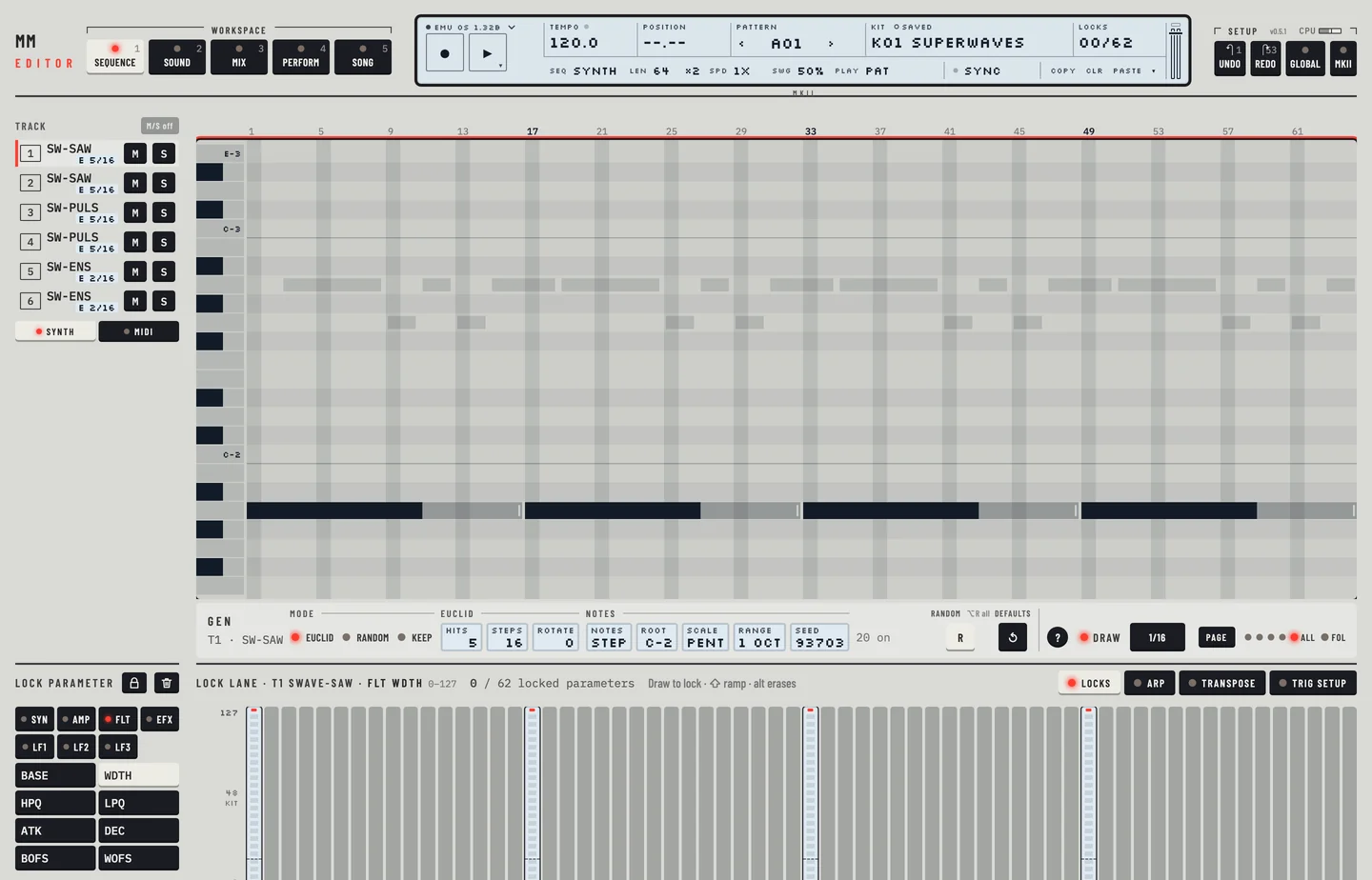
You write a pattern on the Pattern workspace. Press [1], or click the Pattern tab. The rail on the left holds the tracks. The piano roll in the middle shows the notes of the selected track, one column to a step. Under the roll are the rows for the envelope trigs, slide and swing, and under them the lock lane.
RECORDING PREPARATIONS #
MM manual p.1-47
On the machine you select a kit, a track and the trig tracks before you record. In the editor you only select the track.
- Click a track in the rail, or press [↑] or [↓] to move to the track before or after.
- Click Synth under the rail for the six synth tracks, or MIDI for the six MIDI tracks.
The roll shows the selected track. The field SEQ on the second line of the LCD also switches between SYNTH and MIDI.
GRID RECORDING #
MM manual pp.1-47, 1-48, 1-49
On the machine you step through the grid with the trig keys. In the editor you draw the notes in the piano roll.
Write notes
- Make sure Draw is lit above the roll. Press [B] to turn it on or off.
- Click the Len key to choose the length a new note gets: 1/16, 1/8, 1/4, 1/2 or 1 bar. Click for the next length. Hold [⇧] and click for the one before.
- Click an empty step at the pitch you want. A note of that length goes in.
- To change the pitch, drag the note up or down.
- To fill steps, drag sideways. Every empty step the pointer crosses gets the note.
A drag or a paint is one undo step. [⌘] + [Z] takes it back whole.
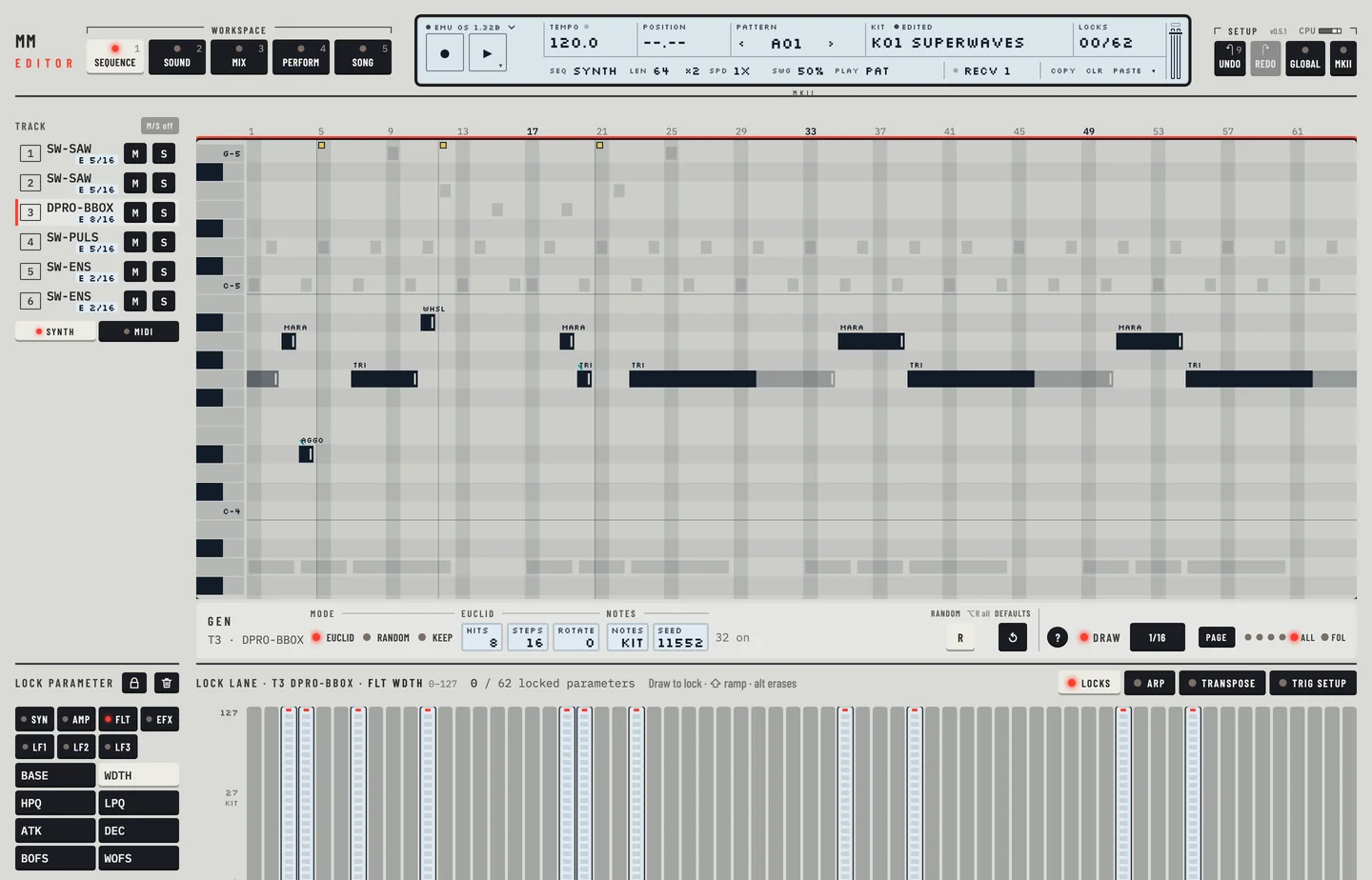
The roll shows a range of pitches. Scroll the wheel over it to move the range. Hold [⇧] to move it an octave at a time. On a synth track the keys at the left of the roll play the pitch.
Note length and NOTE OFF
Drag the end of a note to set its length. New notes take the length too. On a synth track a note sounds until the next NOTE OFF or the next trig of the track, so the editor writes a NOTE OFF where the note ends. On a MIDI track the editor writes the note's LEN, 6 to a step. A note can be drawn up to the next trig of its track. It can run past the end of the pattern onto its start, and the roll draws that part lighter.
To set a NOTE OFF by hand, hold [⌥] and click an empty step. A NOTE OFF is a yellow mark.
To delete a note, double-click it, or hold [⌥] and click it. The earlier note runs on to the next trig or NOTE OFF, as on the machine. The editor writes no NOTE OFF and takes none away: a NOTE OFF goes only when you clear its own step. Drag on with [⌥] held to delete every step the pointer crosses. One [⌘] + [Z] brings all of them back.
Selecting a note
Click a note to select it. It stays selected, with no [⌘] needed. [DELETE] or [BACKSPACE] removes it. With one note selected, [↑] and [↓] change its pitch by a semitone, and [⇧][↑] and [⇧][↓] by an octave. Hold a key and the note keeps moving; the whole hold is one undo step. With no note selected, [↑] and [↓] still move to the previous or next track. A double-click on an empty place draws one note: the second click does nothing.
Chords
Hold [⇧] and click the step at another pitch. The step holds a chord note. A chord on a MIDI track has one length for all its notes. A synth track plays a chord through its arpeggiator (chapter 15) or in poly mode.
Rotate
Press [⌥] + [←] or [⌥] + [→] to move all the notes, slides and locks of the selected track one step earlier or later. They wrap round at the length of the pattern.
Rotates made while [⌥] stays down are one undo step. Let go of [⌥] and the next rotate is a step of its own, so [⌘] + [Z] takes back one rotate at a time.
Copy, clear and paste on the LCD
The LCD keys Copy, Clr and Paste act on the selected track. With no steps selected they act on the page shown (see "Track page copy"). With steps selected they act on the selection (see "Note copy").
LIVE RECORDING #
MM manual p.1-49
Live recording records the notes you play while the pattern runs.
- Select a synth track.
- Press [⌥] + [SPACE]. The machine starts to play and to record. While the machine already plays, you can also click ● on the LCD.
- Play the computer keys: the white keys A to L and the black keys W E T Y U O P. Z and X move the octave, C and V the velocity.
- Press [⌥] + [SPACE] again, or click ●, to stop recording.
The machine records each note on the step nearest to it. The notes appear in the roll.
Not in the editor yet: The editor records one key at a time. Draw a chord with [⇧]-click in the roll.
To erase while you record, select the track and hold [DELETE] or [BACKSPACE]. This is the machine's [EXIT]. The notes of the track go on each step that plays while the key is down. The track's header is marked red. Let the key go to stop erasing.
STEP RECORDING #
MM manual p.1-50
In step recording you play one note for each step, and the machine moves on by itself. The tempo does not matter.
- Stop the machine and select a synth track. The machine writes only this track.
- Hold [⇧] and click the record key, or choose Step record in the play key's menu. The record key shows STEP, and a red cursor on the roll marks the step, with the track and the step number. A selection of steps is dropped.
- Play a note with the computer keys or the keys left of the roll. The machine writes it to the step under the cursor, and the cursor moves to the next step.
- Press [←] or [→] to move. → leaves a rest and moves on. ← goes a step back.
- Press [DELETE] or [BACKSPACE] to clear the step under the cursor. The cursor moves on.
- Press [ESC], or click the record key, to stop.
Select another synth track while step recording is on, and the machine records that track from the same step.
You can also draw notes in the piano roll at any time.
NOTE COPY #
MM manual p.1-50
You copy notes with a selection of steps. A selection holds steps of one track or of several tracks.
- Hold [⌘] and click a step in the roll or in the trig rows to select it. Hold [⌘] and drag to select a run of steps. A drag over the step ruler above the roll selects steps of the selected track without a key. Hold [⇧] and click the ruler to extend the selection.
- Press [⌘] + [C], or click Copy on the LCD.
- Select the step to copy to.
- Press [⌘] + [V], or click Paste. The copy goes in with its first step on the selected step.
Notes, NOTE OFFs, envelope trigs, slides and locks go along. Other keys on a selection:
| Key | Does |
|---|---|
| [⌘] + [X] | copy, then clear |
| [⌘] + [D] | put a copy right after the selection; again for another |
| [⌘] + [A] | select every step of the six tracks shown |
| [←] or [→] | move the selection one step |
| [⇧] + [←] or [⇧] + [→] | extend the selection one step |
| [ESC] | clear the selection |
Drag the selection with [⌘] held to drop a copy where you let go. A dashed frame shows where it lands. With Draw dark, drag the selected notes in the roll without [⌘] to move them.
Select a step or steps and click the small ⋯ on the selection for the step menu (a right-click on a step opens it too): note on or off, NOTE OFF, a trigless trig, the envelopes (Amp, Filter, LFO), slide, swing, a chord note, copy, cut, paste here, duplicate, clear, and fill every 2nd or 4th step from the one you clicked. Clear takes the notes, the slide and the locks of the steps. To keep the notes, choose Clear locks (keep the notes). Synth steps paste onto synth tracks, MIDI steps onto MIDI tracks.
CLEAR NOTE PARAMETER LOCKS #
MM manual p.1-50
To clear the locks of one parameter on some steps, hold [⌥] and drag across the bars in the lock lane. Click the bin in the lane header to clear all the locks of that parameter. Hold [⌥] and click the bin to clear every lock of the track. A selected step cleared with [DELETE] or [BACKSPACE] loses its note and its locks together.
The machine's CLEAR NOTE LOCKS clears the locks of one note and keeps the note:
- Select the step, or several steps, in the roll or the trig rows.
- Right-click one of them and choose Clear locks (keep the notes).
You can also click the small ⋯ on a selected step and choose it there. The notes stay. Press [⌘] + [Z] to get the locks back.
TRACK PAGE COPY #
MM manual pp.1-49, 1-51
A page is the 16 steps shown while Page is on. While All is lit, the page is the whole pattern. With no steps selected, the LCD keys copy and paste the page shown of the selected track.
- Show the page to copy.
- Click Copy on the LCD. The page is named, and its steps, slides and locks are copied.
- Show the page to paste into. It can be on another track of the same kind.
- Click Paste.
Pages paste between synth tracks or between MIDI tracks, not between the two. A lock for a parameter the target machine does not have is skipped, and the page says how many.
To paste into several tracks at once, hold [⇧] and click the tracks in the rail. The marked tracks light. Press [⌘] + [V]. The page goes into every marked track as one undo step. Press [ESC] to unmark.
CLEAR TRACK PAGE #
MM manual p.1-51
Click Clr on the LCD with no steps selected. The notes, slides and locks of the page shown on the selected track go. [⌘] + [Z] takes it back.
TRACK COPY #
MM manual p.1-52
To copy a track with its sound, arpeggiator, transpose and swing:
- Select the track in the rail.
- Click ▾ beside <COPY> <CLR> <PASTE> on the LCD, then Copy…. The Copy what window opens.
- Tick Notes, Slide, Swing, Arp, Transpose and Machine + sound, and click Copy.
- Select the track to paste into.
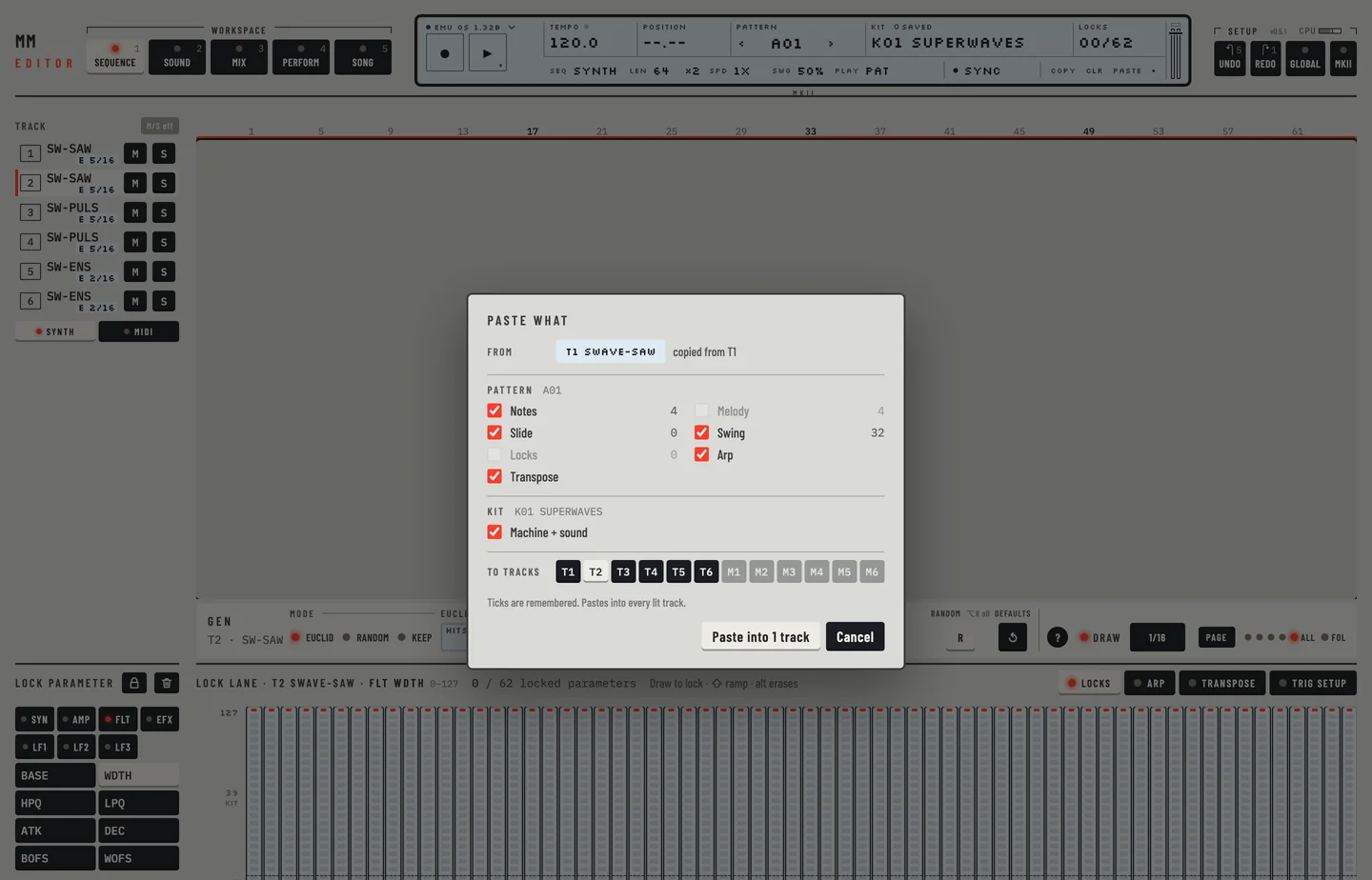
- Click ▾, then Paste…. The window reads Paste what.
- Click Paste into 1 track. The track now holds the notes, slides, swing, arpeggiator, transpose and machine of the first. Press [⌘] + [Z] and the track is as before, in one step.
To copy only the notes with the step ruler:
- Drag across the whole step ruler to select all the steps of the selected track.
- Press [⌘] + [C].
- Click the target track in the rail, then click the first step of the ruler.
- Press [⌘] + [V].
A track copy takes all 64 steps of the track, whatever the length of the pattern.
Press [⌘] + [A] to select the six tracks shown, and paste them as a block. To copy the machine of a track, use Copy and Paste on the Kit workspace.
To copy a whole track with its machine, its arpeggiator, its transpose and its swing in one copy, use Copy… in the LCD's ▾ menu: see "Super copy".
CLEAR TRACK #
MM manual p.1-53
To clear parts of a track:
- Select the track in the rail and press [⌘] + [⇧] + [BACKSPACE]. The Clear what window opens.
- Tick the parts, for example Notes alone, and click Clear. The notes go and the slides stay.
Or select all the steps of the track with the ruler and press [DELETE] or [BACKSPACE]. To clear every lock of the track, hold [⌥] and click the bin in the lane header.
To clear the whole track, or only some of its parts, use Clear… in the LCD's ▾ menu: see "Super clear". Clr clears the page shown.
PATTERN COPY #
MM manual p.1-53
A pattern copy takes the whole pattern: the notes, locks, MIDI notes, the arpeggiator, transpose, swing and slide, and the link to the kit.
- Open the pattern chooser: click the pattern field of the LCD.
- Click the slot to copy, then Copy.
- Click the target slot, then Paste. The slot shows the length and kit of the copy at once.
- Press [⌘] + [Z] to take the paste back.
You can also drag a slot onto another slot to copy it there.
CLEAR PATTERN #
MM manual p.1-54
In the pattern chooser, click the slot and then Clear, and answer the question. The slot reads EMPTY at once. Or, on Pattern, press [⌥] + [DELETE] or [⌥] + [BACKSPACE]. [⌘] + [Z] takes it back.
Both clear the notes and locks of every track. The pattern keeps its link to the kit, as on the machine.
SUPER COPY #
MM manual p.1-54
Super copy copies the parts of a track you choose, over every step of the pattern.
- Select the track in the rail.
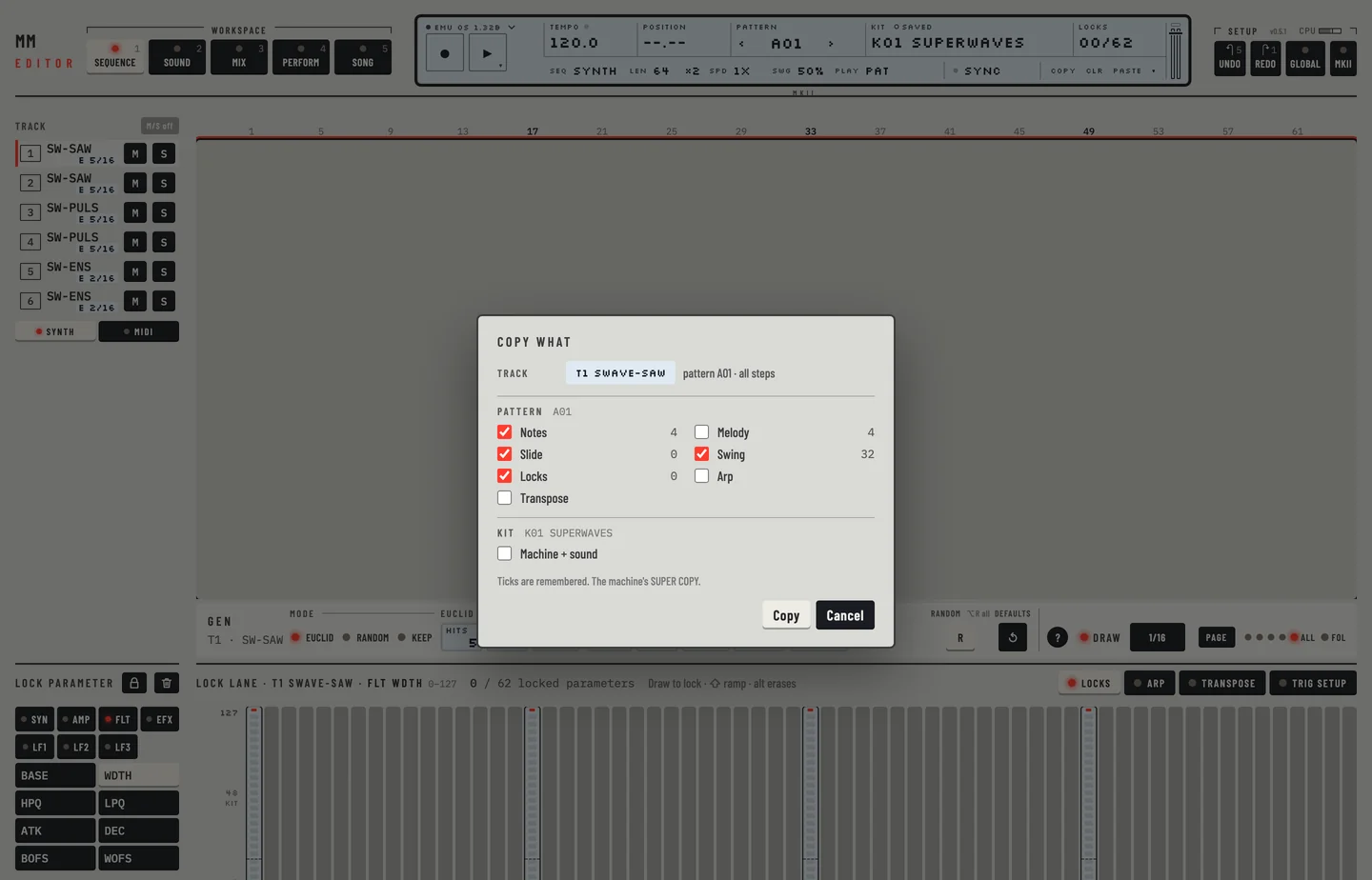
- Click ▾ at the right of <COPY> <CLR> <PASTE> on the LCD, then Copy…, or press [⌘] + [⇧] + [C]. The Copy what window opens.
- Tick the parts. Pattern has Notes, Melody, Slide, Swing, Locks, Arp and Transpose. Kit has Machine + sound (a synth track's).
- Click Copy.
- Select the track to paste into. Click ▾, then Paste…, or press [⌘] + [⇧] + [V].
- The parts copied are ticked. Under To tracks the selected track is lit, or the tracks marked for paste. Click a track key to light or unlight it.
- Click Paste into 1 track (the key says how many). The paste is one undo step.
Notes takes the trigs, the envelope trigs, the NOTE OFFs and the pitches. Melody takes only the pitches: they go onto the trigs the target track already holds, and a step with no trig stays empty.
SUPER CLEAR #
MM manual p.1-55
- Select the track in the rail.
- Click ▾ at the right of <COPY> <CLR> <PASTE>, then Clear…, or press [⌘] + [⇧] + [BACKSPACE].
- Tick the parts to clear and click Clear.
Clearing Notes clears their locks too. Melody leaves the trigs without a pitch. Swing goes back to every second 16th step, as in a new pattern. Arp turns the arpeggiator off and keeps its settings. Machine + sound makes the track GND-SIN.
The window remembers what you ticked the last time. Press [⌘] + [Z] to take the clear back.