Parameter locks
A parameter lock gives one parameter a value of its own on one step. The parameter takes the value when that step plays and goes back to the kit value after it. The editor paints new locks on steps with a trig. Existing locks on steps without a trig are kept and shown as ghost bars; the machine plays them too.
The pattern holds locks for 62 parameters. The count is shared by all twelve tracks. A parameter counts once however many steps lock it. The Locks field of the LCD shows the count, for example 12/62. When all 62 are used, the editor refuses a new locked parameter and says so. Clear the locks of one parameter to make room.
PARAMETER LOCKS #
MM manual p.1-58
The lock lane is under the piano roll on Pattern. Press [1] and select a track.
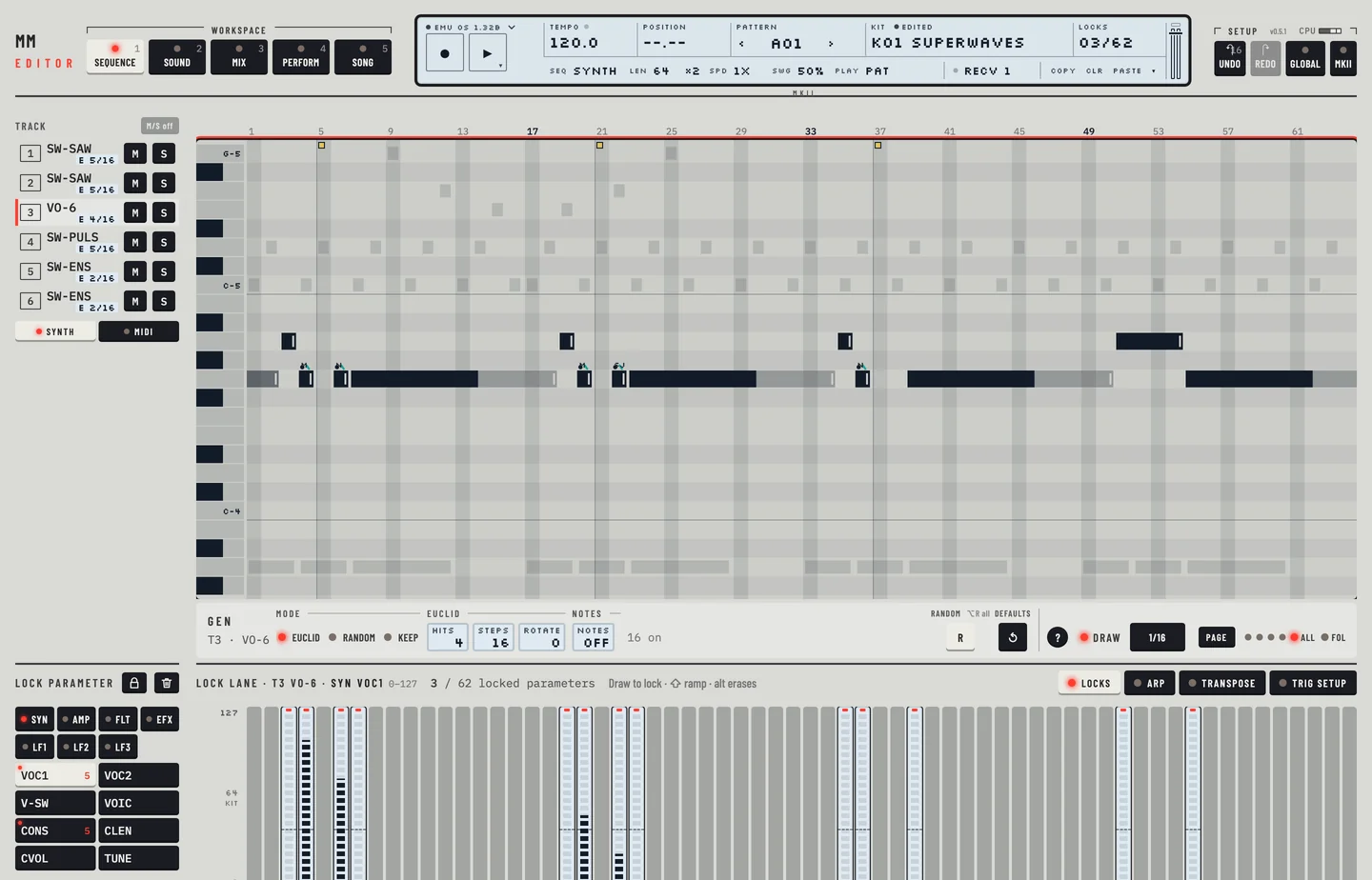
The rail on the left of the lane lists what you can lock. For a synth track the page keys are SYN, AMP, FLT, EFX, LF1, LF2 and LF3. For a MIDI track there is one key, MIDI PAGE. A green light on a page key means the page holds locks. Under the page keys are the parameters of the page. A number on a parameter key counts its locked steps.
The lane shows one parameter at a time, the one lit in the rail. Each step with a trig has a bar. A solid line across the lane marks the value of the kit, and its number sits on the line at the right end of the lane. Rest the pointer on a step, or select it, to read its lock as a number at the top of its bar. Drag the labelled KIT ↕ handle in the left gutter to change the kit value, or focus it and use the arrow keys. The whole drag is one undo step and draws no lock. The line across the steps is a reference: a plain click or vertical drag on a step edits its lock, even when its value equals the kit value. Hatched steps have no trig. A lock that sits on a step with no trig is drawn there as a hatched ghost bar with a dashed outline and its number. The machine plays such a lock: its value takes hold on that step, without a new note, and stays until the next trig plays the kit value again. Hold [⌥] and click it, or right-click it and choose Clear … lock, to remove it.
A small mark at the top of a bar tells what the trig fires. Red: the trig fires all three envelopes (AMP, FILTER and LFO). Green: it fires only some of them, or none (a trigless trig). The tip of the bar says the same.
PARAMETER LOCKS IN GRID RECORDING MODE #
MM manual p.1-57
On the machine you hold a trig and turn a knob. In the editor you draw the value in the lane.
- Click the page key and the parameter key in the rail.
- Drag across the bars in the lane. Each step with a trig that the pointer crosses takes the value at the height of the pointer. Every lock shows as a bar.
- To move one lock, scroll the wheel over its step. A notch moves the value by 4. Hold [⇧] for 1. A step with no lock starts from the kit value.
- To draw a straight line of values, hold [⇧] and drag from a step without a lock to the last step. Starting on an existing lock draws a slide instead. Every step with a trig under the line gets a lock. It is one undo step.
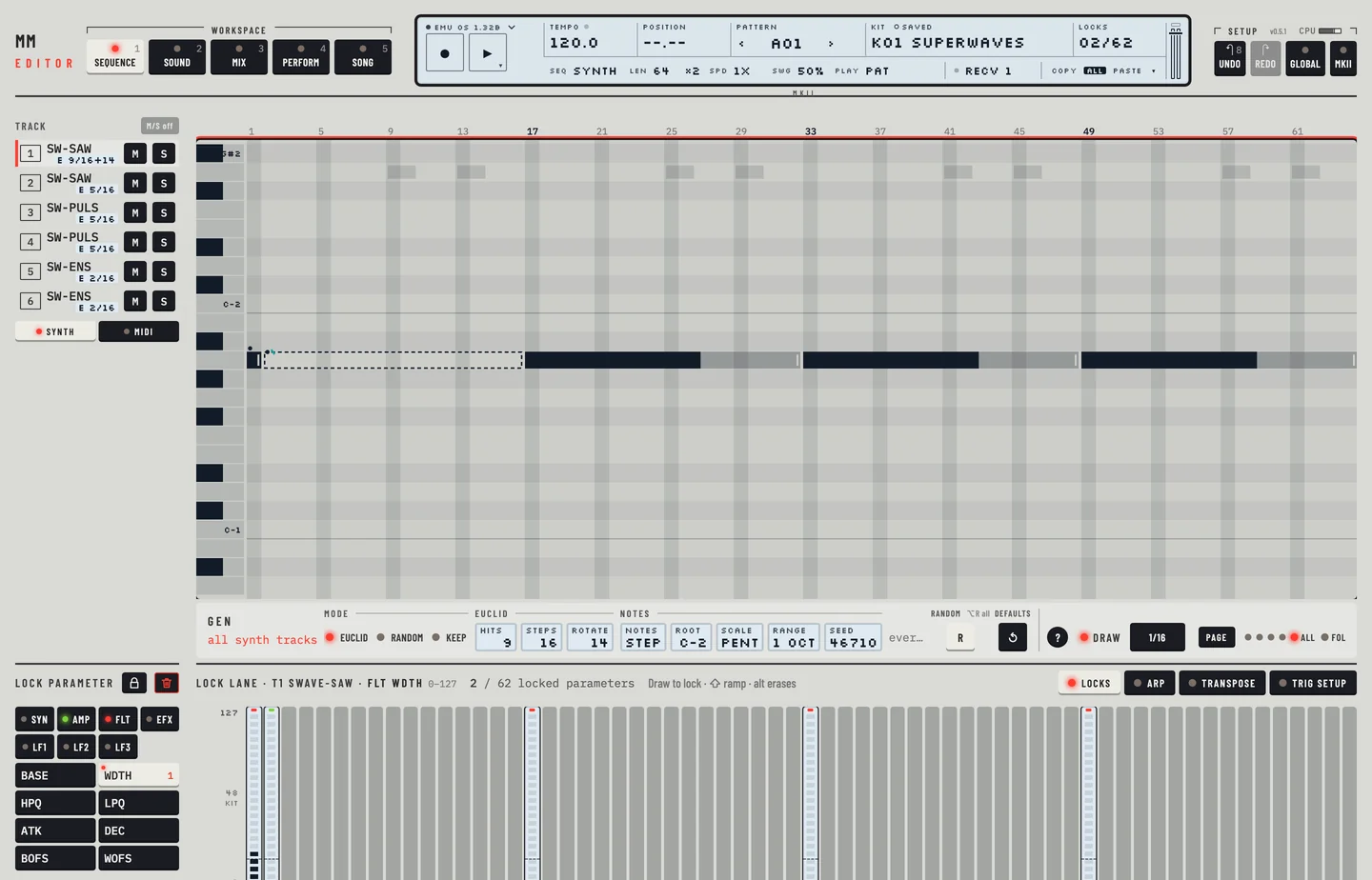
Every lock of the parameter shows as a bar, so you can read the values of a step at any time. When you change the selected track or the parameter, the lane shows the new one.
Remove locks
- Hold [⌥] and drag across the bars to remove the locks of that parameter on the steps you cross. The bars go.
- Right-click a lock bar and choose Clear … lock to remove that parameter on that step. This works on ghost bars too.
- Click the bin in the lane header to remove all the locks of the parameter.
- Hold [⌥] and click the bin to remove every lock of the track.
- Select a step or steps, click the small ⋯ on the selection (or right-click a step) and choose Clear locks (keep the notes) to remove all the locks of the step, or of the selected steps. The note stays. Press [⌘] + [Z] to put them back.
- Select a step and press [DELETE] or [BACKSPACE] to clear the step whole, with its note.
Lock the current value
On the machine you hold a trig and click a knob: the step keeps the value the knob has now. In the editor:
- Click the page key and the parameter key in the rail.
- Select the steps: hold [⌘] and click a note, or drag on the step ruler.
- Click the lock key in the rail's header, beside the bin. Each selected step with a note gets a lock at the value the kit has now.
It is one undo step: press [⌘] + [Z] to take it back. A step without a note cannot hold a lock and is left out. To lock several steps at once, hold [⌘] and click one note, hold [⌘] [⇧] and click a later one, then click the lock key. Every note between them is locked in one undo step.
Copy a note with its locks
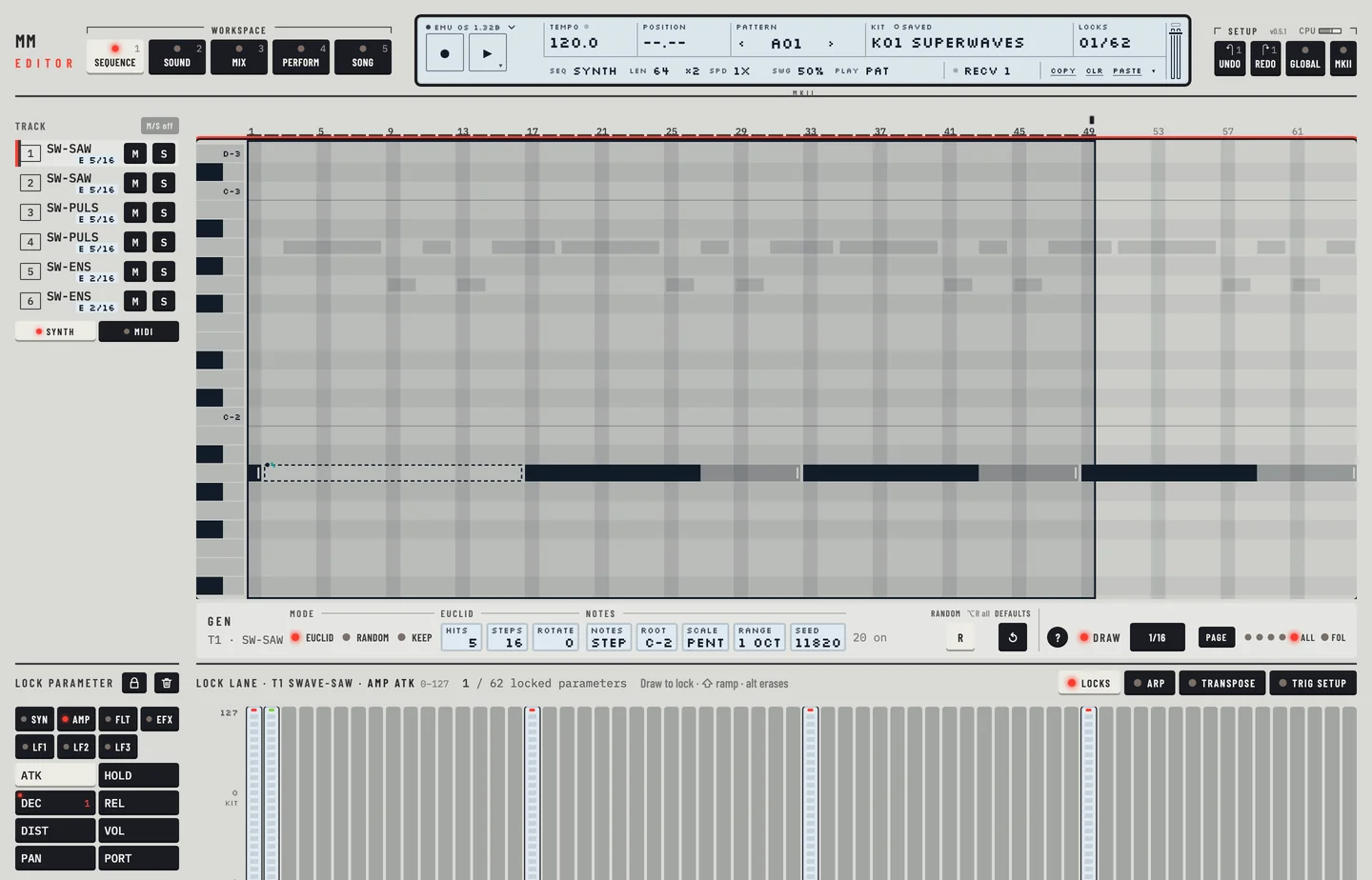
The locks of a step go with the step when you copy it. Right-click a note with a lock, choose Copy, right-click an empty step and choose Paste here. The new step has the pitch and the lock. See "Note copy" in chapter 11.
Slide
A small ramp over a note marks a step that glides. Set it with Slide in the step menu. On a step with a slide, a locked value glides to the next lock instead of jumping. Shift-drag from a lock in the lane draws it; Shift-drag from an empty step draws a ramp of locks. See "Slide" in chapter 15.
PARAMETER LOCKS IN LIVE RECORDING MODE #
MM manual p.1-58
While LIVE RECORDING plays (see chapter 11), turn a value on any page. The machine locks it on the step that plays when the value arrives. A step without a trig gets a trigless lock.
- Press [⌥] + [SPACE] to record live.
- Turn a value, for example the filter BASE on Kit.
- The editor marks the step in the trig row and the bar in the lock lane, and says which value it locked and on which step, for example Locks T1 FLT BASE on step 5.
To tidy up, stop recording and draw the values again in the lock lane.